Create a new employee record
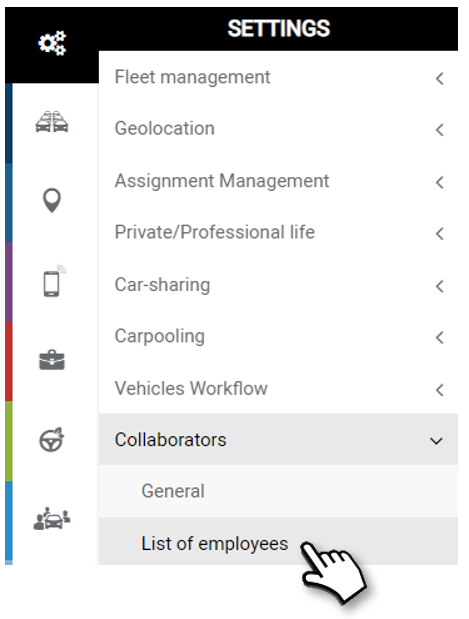
1. Click on NEW

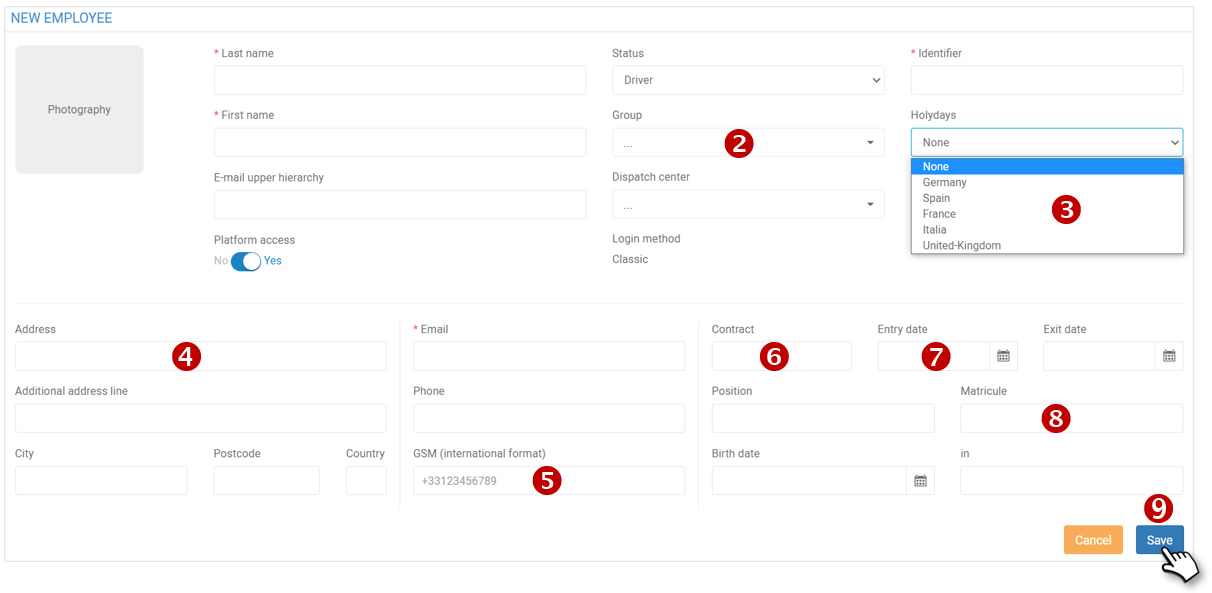
2. Fill in the 5 mandatory fields: Name, first name, status (driver by default but you can select Manager or Supervisor), login and email address.
WE RECOMMEND THE USE OF THE E-MAIL ADDRESS AS A LOGIN.
When the employee’s record is created, he/she will automatically receive an email inviting him/her to create a password.
The other information is useful, if not essential, for the proper functioning of the other services and we advise you to fill it in carefully but this can be done later.
2. Driver Group (Driving Analysis) and Assignment Centre (Fleet Management)
3. Holidays: select the country in which the employee works.
4. Full address, date and place of birth (ANTAI, offences)
5. Mobile phone: send SMS and notifications via the platform.
6. Type of contract (fixed term, permanent…)
7. Date of entry and exit from the organisation (deactivation of rights)
8. Internal personnel number, if applicable.
9. Do not forget to SAVE
Creation of a collaborator without access to the platform
The employee will nevertheless be created and will appear in the list of employees in the organisation.
The employee’s record is modified:
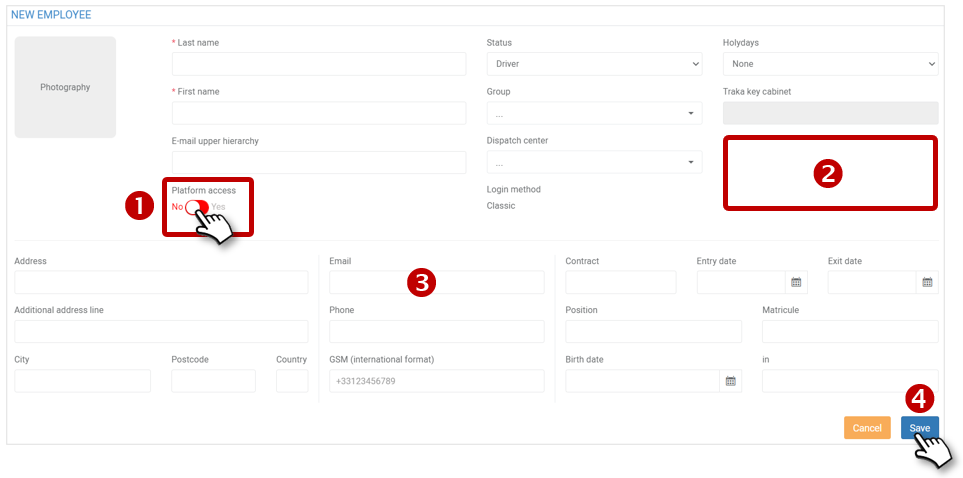
1. The cursor is positioned on NO
2. The “ID” field is deleted.
3. The “email” field is not mandatory
4. Don’t forget to SAVE
Authorize an employee to access the platform at a later date
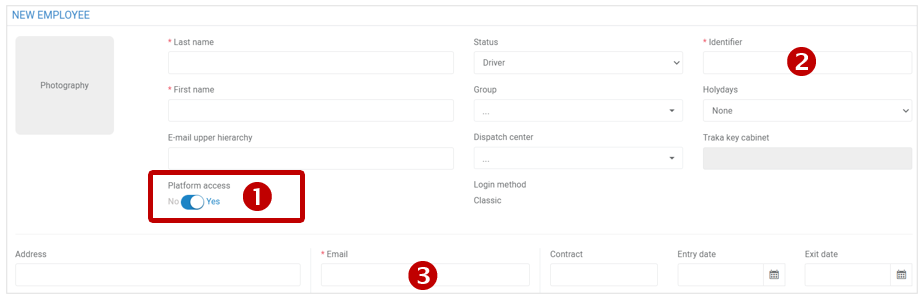
1. Position the cursor on YES
2. The “ID” field appears and must be filled in.
3. The “email” field is mandatory
Do not forget to SAVE.
Two actions are immediately generated after the registration of a new employee:
The driver record is created. All the tabs of the driver’s file appear and can be clicked on.
We invite you to enter or select all the information required for the platform to function properly.
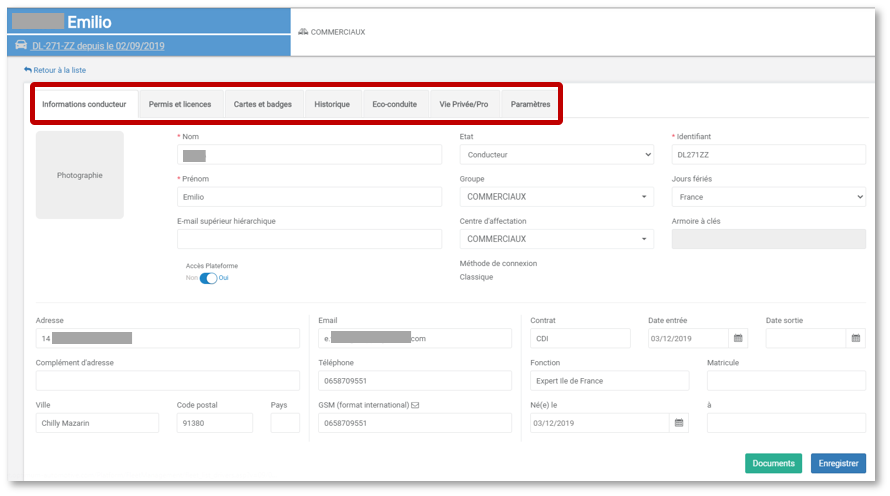
The employee receives an email inviting him to log in and create a secure password.
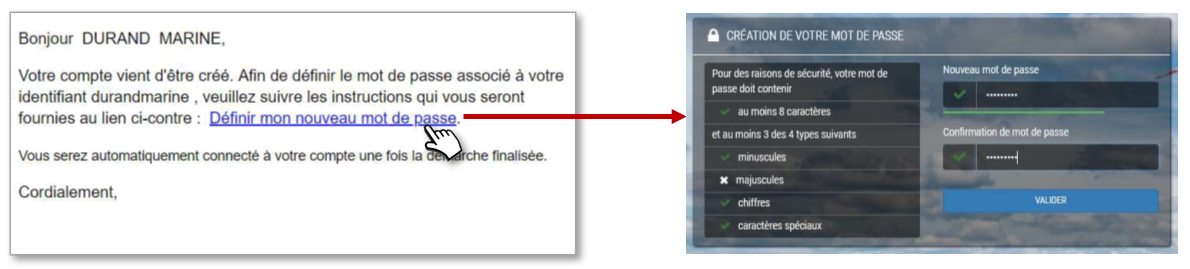
In order for the e-mail to be sent automatically, you must first have written the standard e-mail.
Even without a password, the employee can connect to the platform: enter his login and click on ‘forgotten password’ to create his password
If the account creation email has not yet been personalized
1. On the driver record: the application offers you to personalise the e-mail that will be sent to the employee.

2. A window opens and you can customise the subject and body of the mail.
3. SAVE and the confirmation of the registration is displayed.
The employee receives the personalized email inviting him/her to log in and create his/her secure password.