
Create and organise Geolocation Groups

1. Place your cursor on “My geolocation groups” and click on NEW to create a group. Click NEW again and you will create a sub-group, etc. (No need to save, the action is automatically saved. (No need to SAVE, the action is automatically saved).
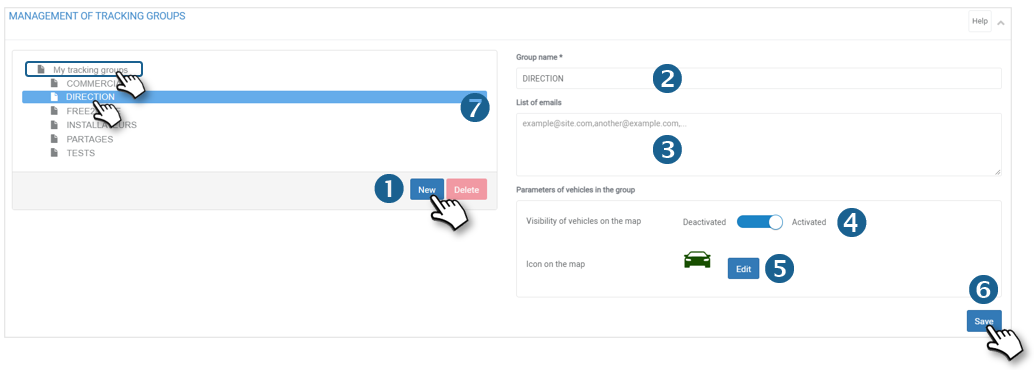
2. Enter a name for this group.
3. The emails entered in this field will receive alerts related to this group. Separate the addresses with ‘, ‘.
4. Visibility of vehicles on the map :
- ACTIVATED = vehicles are displayed.
- DISABLED = vehicles are not displayed.
5. Icon for representing vehicles on the map: click to select the same icon for the whole group. However, if at least 1 vehicle already has a particular icon, you cannot change the icon for the whole group.
6. Do not forget to SAVE.
7. When you DELETE a group that contains subgroups. Only the group is deleted; the sub-groups remain and move up one hierarchical level (e.g. a Sub-group becomes a Group, etc).
If you do not have any groups, you can import the tree structure of your assignment centres or carsharing pools and the distribution of your vehicles by clicking on the IMPORT buttonYou can move one group into another by clicking on the group to be moved and dragging and dropping it into the new Centre.
Modify vehicles in a group
Add vehicle(s) to a group
1. Select the relevant group (highlighted)
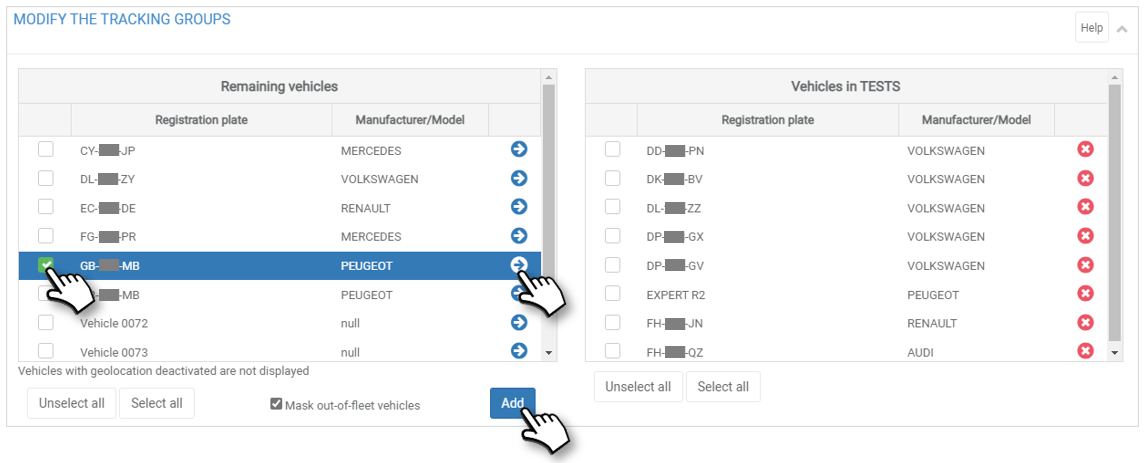
2. In the left-hand column (All vehicles): tick the boxes of the relevant vehicles and click on the ‘ADD’ button or click on the blue arrows of the relevant vehicles.
3. The vehicles will move from the left column to the right column in the relevant group.
4. No need to validate or SAVE, the action is immediate.
Remove vehicle(s) from a group
1. Select the relevant group (highlighted)

2. In the right-hand column (group concerned): tick the boxes of the vehicles concerned and click on the ‘DELETE’ button or click on the red crosses of the vehicles concerned.
3. The vehicles will move from the right column to the left column (All vehicles).
4. No need to validate or SAVE, the action is immediate.NB: Vehicles are not actually deleted, they are switched to the general list of vehicles without an assignment group.