
Skip to the content
SecuriTrack HelpcenterSecuriTrack Helpcenter
  • English
    • Français
    • Español
    • Português
  • English
    • Français
    • Español
    • Português

First steps

  • Your vehicles
  • Your drivers
  • Assignment of vehicles
  • Vehicle groups
  • Groups of drivers
  • Management of access rights
  • User management
  • Vehicle display

Geolocation

  • Home page
  • Driver charter
  • The routes
  • Monitoring areas
  • Trailers and dumpsters
  • History of events
  • Fuel level
  • Address book
  • Immobilizing a vehicle
  • Blocking the taximeter
  • Share location

Fleet Management

  • Dashboard
  • Vehicle file
  • Driver record
  • Statistics
  • TCO
  • History
  • Follow-up invoices
  • Follow-up costs
  • Follow-up contracts
  • Follow-up incidents
  • Follow-up of interventions
  • Follow-up of maintenance
  • Follow-up of damages
  • Follow-up of fines
  • Follow-up of vehicle defects
  • Suppliers
  • Definition of costs
  • Definition of VAT
  • Definition of products
  • Definition of the types of maintenance
  • Cards and badges management
  • Fuel station management
  • Allocation centers
  • Vehicle equipment
  • Equipment allocation
  • Driver’s license presentation
  • Multi-fleet manager

Fuel Monitoring

  • Consumption monitoring
  • Heavy trucks

Eco-driving

  • Setting
  • Data analysis
  • Challenges

Temperature Monitoring

  • Temperature management

Trailers and dumpsters

Table of Contents
  • Assign your beacons to your dumpster to geolocate it
  • Track the location of the dumpsters
  • Assignment of Dumpsters

Assign your beacons to your dumpster to geolocate it
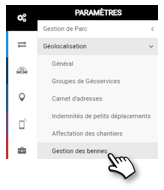
You can allocate as many dumpster as you have installed beacons. It will then be possible to change the allocations or remove unallocated dumpster.
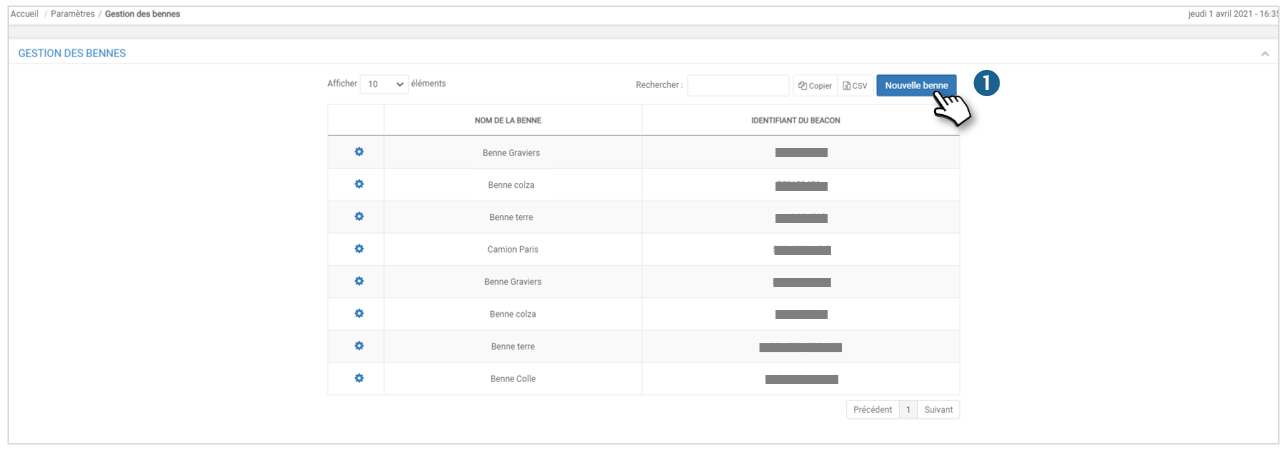
1. Click to create a NEW DUMPSTER

A new window opens:
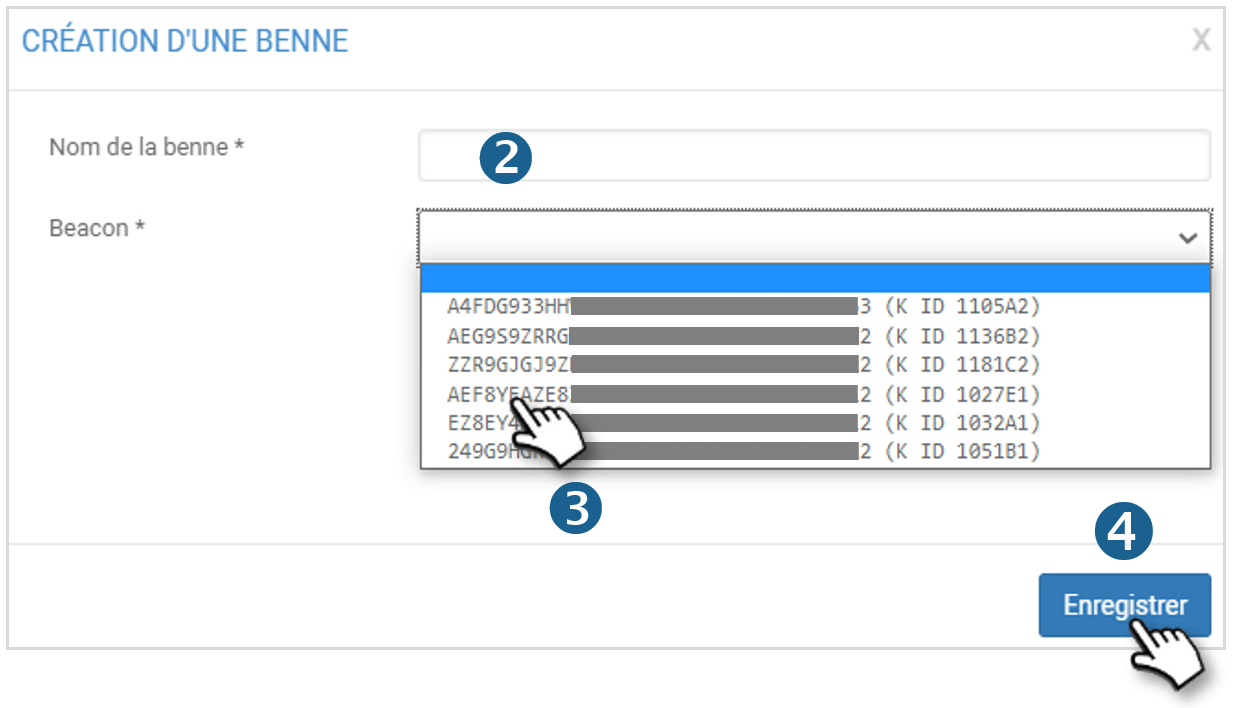
2. Assign a NAME to the dumpster

3. Choose from the drop-down list the BEACON associated with the selected dumpster

4. Do not forget to SAVETo be fully functional, you must have geolocation, vehicles equipped with beacons and the dumpster with beacons.

Track the location of the dumpsters
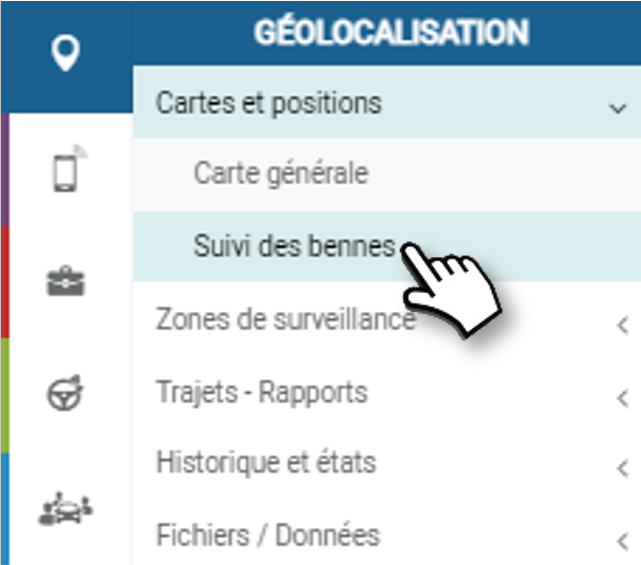
1. Select dumpsters

2. Focus on the fleet

3. Display Dumpster Names

4. When you click on a dumpster, the information related to the dumpster is displayed
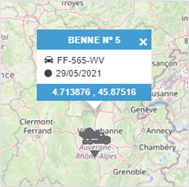
5. When multiple dumpsters are in the same location, a cluster indicating the number of vehicles present is displayed. When you click on the line of a dumpster, a zoom is automatically performed to display the selected dumpster.

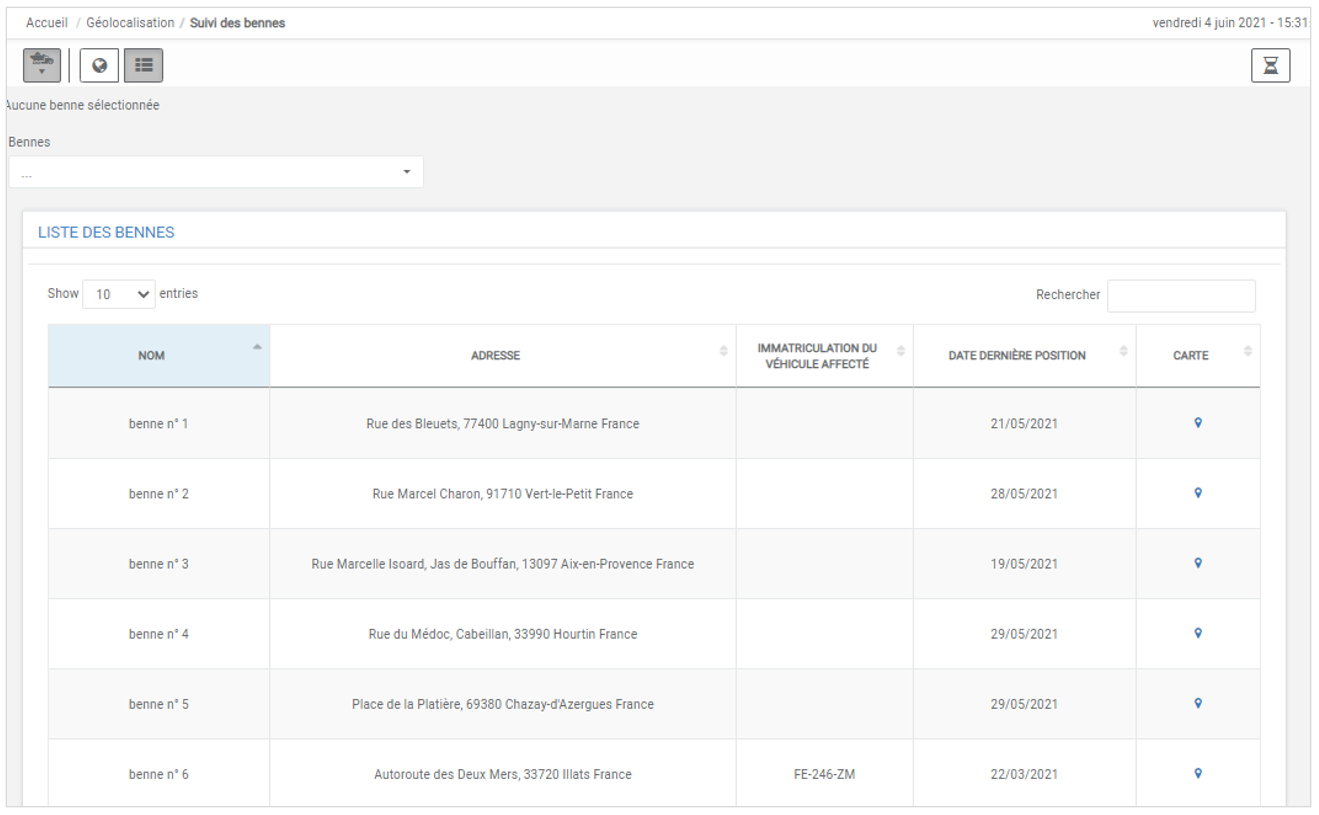
6. Change of View: Change to List View:
Assignment of Dumpsters
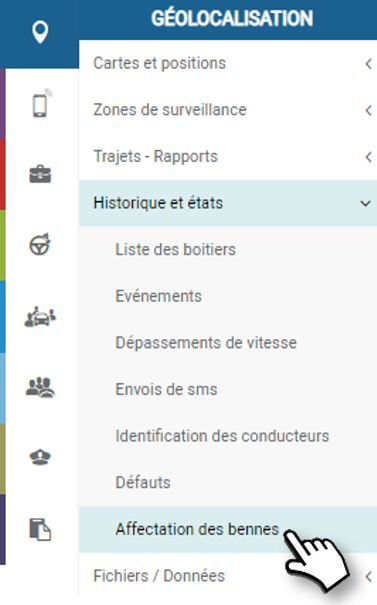
Assignments are not created via the platform but automatically when a vehicle detects a dumpster.

Management rules:

Only one known beacon detected

  • If no assignment exists with this beacon 👉 Creation of an Assignment
  • If an assignment exists with this beacon 👉 Closure of the current assignment and create a new assignment

Several known beacons detected

  • If an assignment is in progress 👉 Assignment Close (assumes the truck has returned to the parking spot where there are multiple dumpsters) 
  • If no assignment is in progress 👉 No action

No known beacon detected

  • If an assignment is in progress 👉 Closure of the assignment + generation of an alert
  • If no assignment is in progress 👉 No action

The assignment of a dumpster to a vehicle is also visible via the general map:

A pictogram is present in the vehicle list in order to visualize the vehicles for which a dumpster is currently assigned.

Cet article vous a-t-il été utile ?
Updated on 14 March 2022
Monitoring areasHistory of events
Table of Contents
  • Assign your beacons to your dumpster to geolocate it
  • Track the location of the dumpsters
  • Assignment of Dumpsters

© 2026 SecuriTrack Helpcenter

Powered by WordPress

To the top ↑ Up ↑