
Skip to the content
SecuriTrack HelpcenterSecuriTrack Helpcenter
  • English
    • Français
    • Español
    • Português
  • English
    • Français
    • Español
    • Português

First steps

  • Your vehicles
  • Your drivers
  • Assignment of vehicles
  • Vehicle groups
  • Groups of drivers
  • Management of access rights
  • User management
  • Vehicle display

Geolocation

  • Home page
  • Driver charter
  • The routes
  • Monitoring areas
  • Trailers and dumpsters
  • History of events
  • Fuel level
  • Address book
  • Immobilizing a vehicle
  • Blocking the taximeter
  • Share location

Fleet Management

  • Dashboard
  • Vehicle file
  • Driver record
  • Statistics
  • TCO
  • History
  • Follow-up invoices
  • Follow-up costs
  • Follow-up contracts
  • Follow-up incidents
  • Follow-up of interventions
  • Follow-up of maintenance
  • Follow-up of damages
  • Follow-up of fines
  • Follow-up of vehicle defects
  • Suppliers
  • Definition of costs
  • Definition of VAT
  • Definition of products
  • Definition of the types of maintenance
  • Cards and badges management
  • Fuel station management
  • Allocation centers
  • Vehicle equipment
  • Equipment allocation
  • Driver’s license presentation
  • Multi-fleet manager

Fuel Monitoring

  • Consumption monitoring
  • Heavy trucks

Eco-driving

  • Setting
  • Data analysis
  • Challenges

Temperature Monitoring

  • Temperature management

Equipment allocation

Table of Contents
  • dd equipment in a center :
  • Remove equipment from a center:

dd equipment in a center :
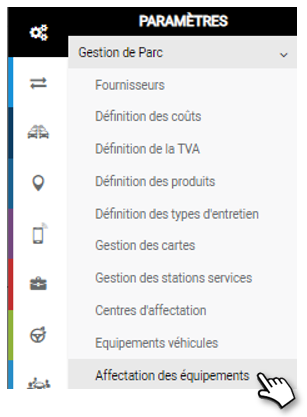
1. Select a device from the drop-down list.

2 tables are displayed:
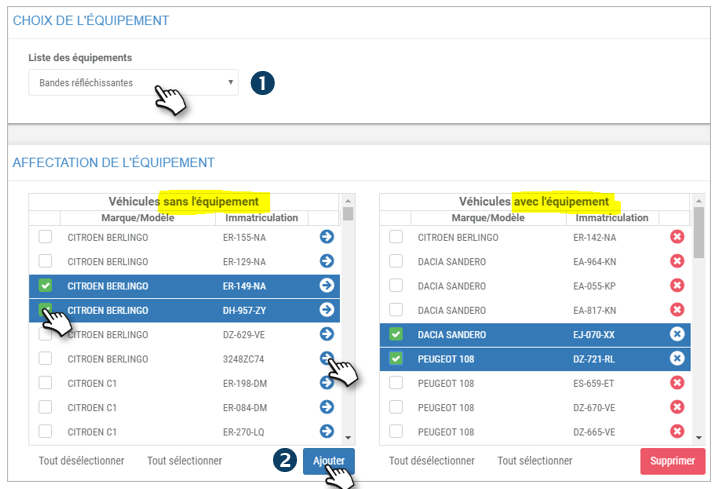
Left: vehicles WITHOUT equipment (fleet)

Right: vehicles WITH equipment

2. In the left-hand column (WITHOUT equipment): tick the boxes of the vehicles concerned and click on the ‘ADD’ button or click on the blue arrows of the vehicles concerned.

The vehicles will move from the left column to the right column (WITH the equipment).

No need to validate or SAVE, the action is immediate.

Remove equipment from a center:

1. Select a device from the drop-down list.

2 tables are displayed:

Left: vehicles WITHOUT equipment (fleet)

Right: vehicles WITH equipment

2. In the right-hand column (WITH equipment): tick the vehicles concerned and click on the ‘DELETE’ button or click on the red crosses of the vehicles concerned.

The vehicles will move from the right column to the left column (WITHOUT the equipment).

No need to validate or SAVE, the action is immediate.

Cet article vous a-t-il été utile ?
Updated on 16 March 2022
Vehicle equipmentDriver’s license presentation
Table of Contents
  • dd equipment in a center :
  • Remove equipment from a center:

© 2026 SecuriTrack Helpcenter

Powered by WordPress

To the top ↑ Up ↑