
Prerequisites
Import the list of your vehicles and drivers/collaborators
1. Get in touch with Our Consultant to import your files into the application.
2. In the FLEET MANAGEMENT > Fleet menu, double-click on a vehicle line to display its detailed file.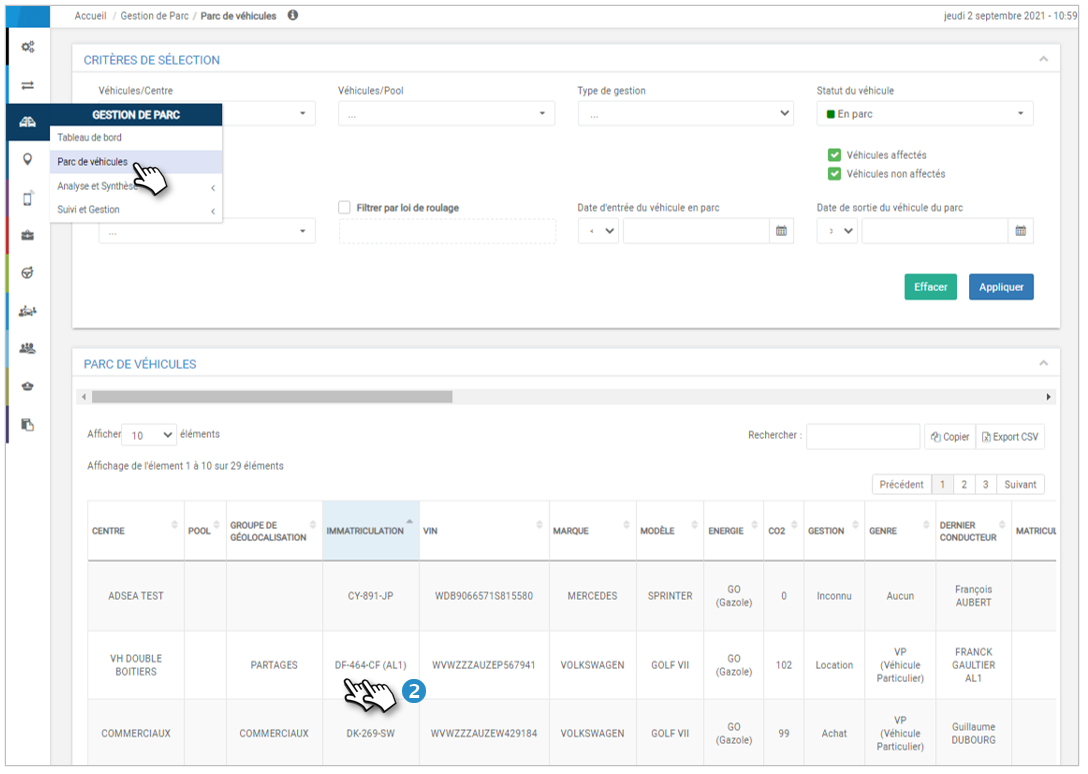
3. Check that the 4 fields: “Extra Urban Consumption”, “Urban Consumption”, “CO2” and “Energy” are correctly filled.
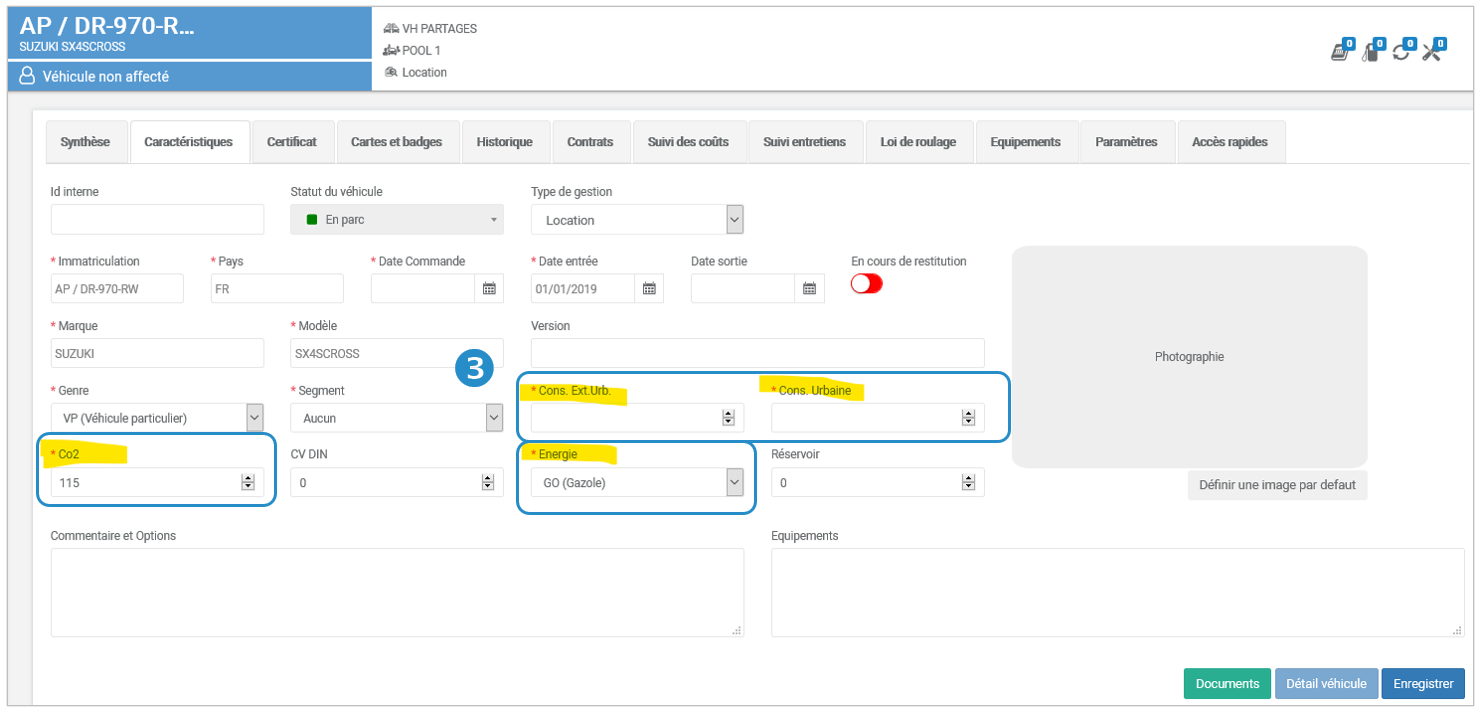
Attention !Without this information, the service will not work.
Activate the eco-driving menu for drivers
CASE 1: Activate the menu for all or many employees
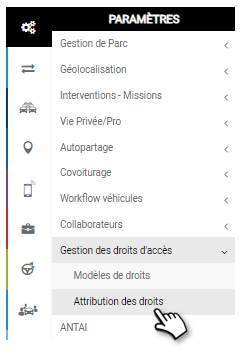
Refer to the “access rights management” page to define a rights model and assign this model to the concerned employees.
This configuration is done in the SETTINGS menu:
CASE 2: Activate the menu for some employees
Open the Driver record of the employee concerned, click on the SETTINGS tab and in the ECO-CONDUCT section, place the cursor on ACTIVATED and SAVE.
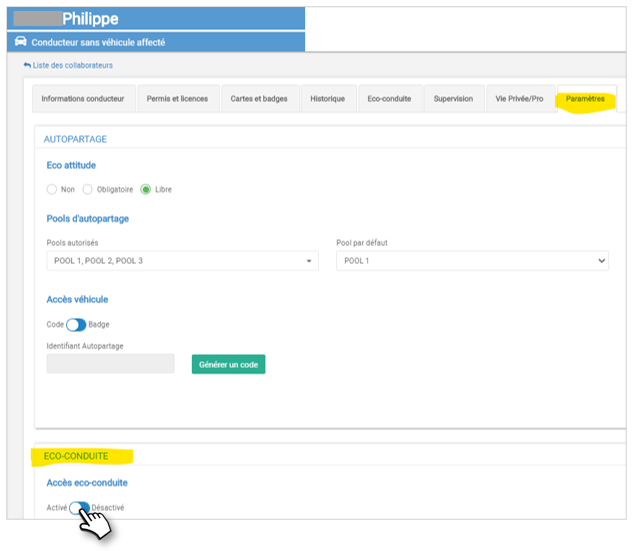
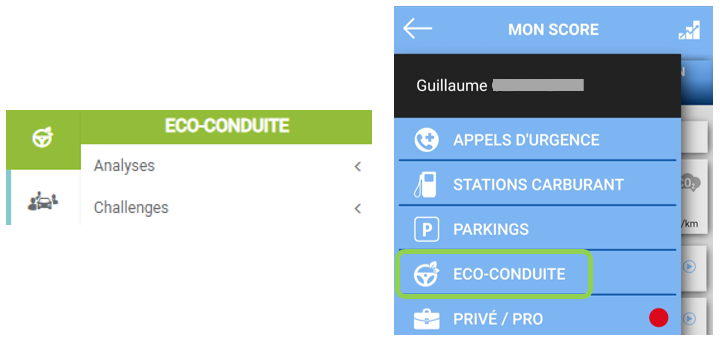
The ECO-CONDUITY menu is activated on the web and mobile applications:
Alerts
These alerts allow you to be warned of driving behaviors that generate road risks and additional costs for the company.
Setting up alerts is not mandatory but is recommended in order to get the most out of your eco-driving tool.
Step 1: Display the list of collaborators
1. In the SETTINGS > Collaborators menu, click on “List of collaborators”.
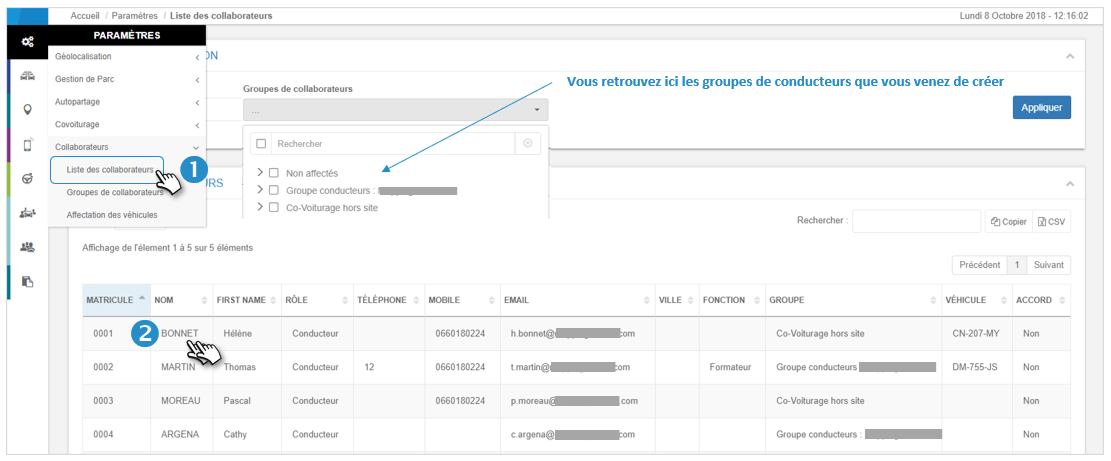
2. Double-click on the line of a driver and go to the next page.
Step 2: Display the “Ecodriving” tab
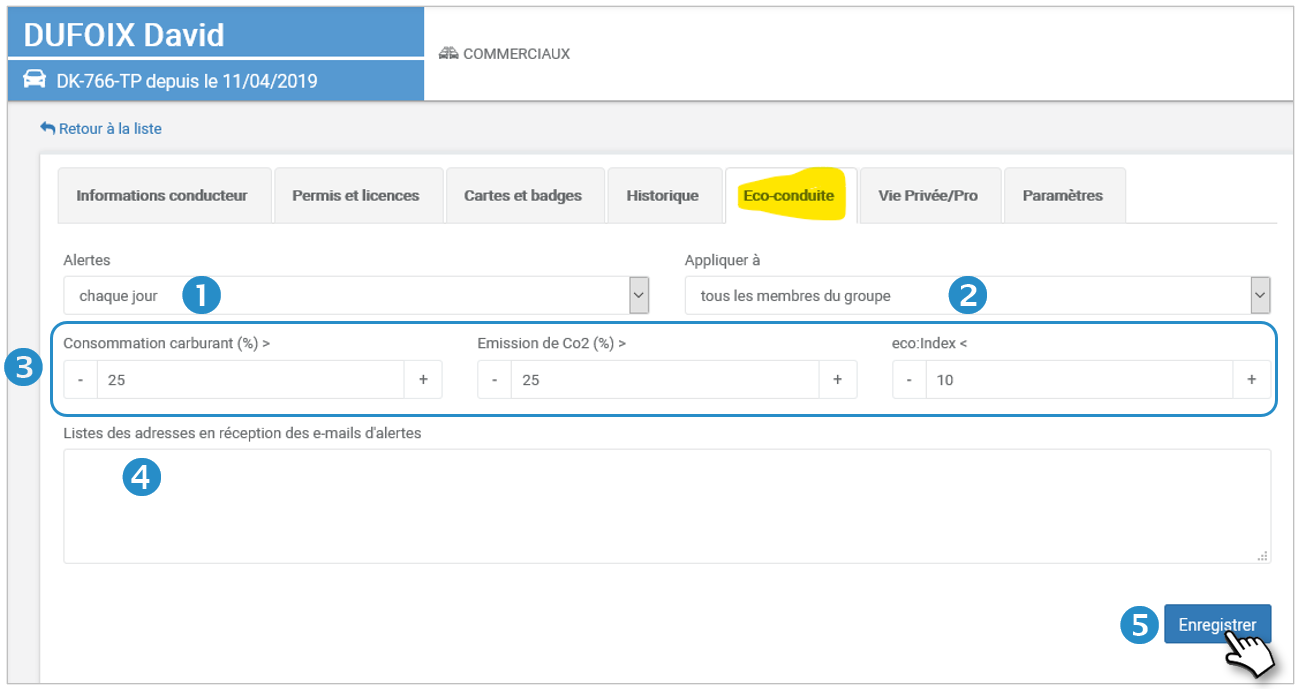
1. Choose the frequency of alerts: daily, weekly, monthly
2. Select the monitored driver(s): this driver or all the drivers in the group.
3. Three alerts are proposed:
- Overconsumption of fuel: enter the % of overconsumption (compared to the consumption provided by the manufacturer) above which you wish to be alerted (100% if you do not wish to be alerted).
- CO2 emission: enter the % of over-emissions (compared to the data provided by the manufacturer) above which you wish to be alerted (100% if you do not wish to be alerted).
- Eco:Index (eco-driving score): enter the score below which you wish to be alerted (0% if you do not wish to be alerted).
4. Alert recipients: enter the email addresses of the recipients of these alerts (separated by a comma).
5. Don’t forget to SAVE.