Display the temperatures of a vehicle’s load
This option requires the prior installation and connection of temperature sensors connected to the telematic box and the subscription to the service
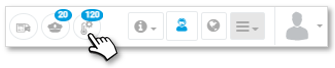
Vehicles with temperature sensor(s) are indicated by this pictogram :
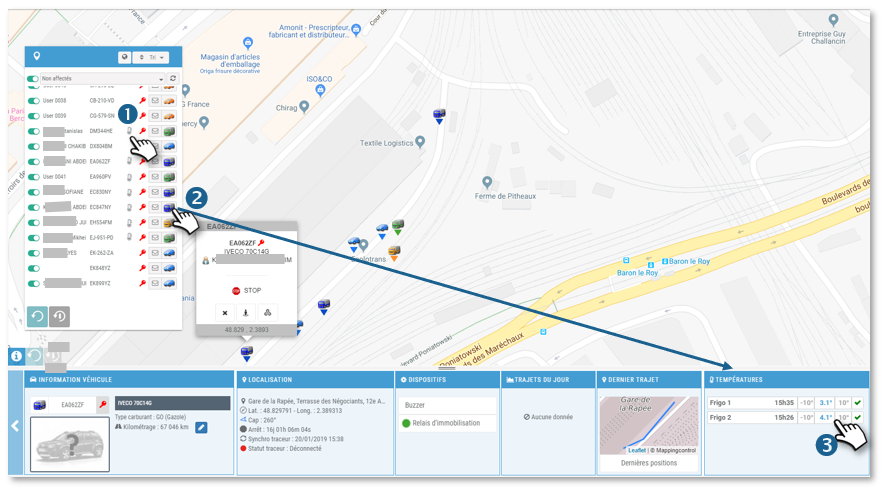
1. By clicking on it you can directly access the routes window:
2. Click on the icon of the concerned vehicle.
3. In the TEMPERATURES widget, you see the last temperature reading for each sensor with the time of the reading, the minimum and maximum allowed set and a colored icon indicating whether the temperature reading is within the allowed range ( ) or outside (
 ).
).
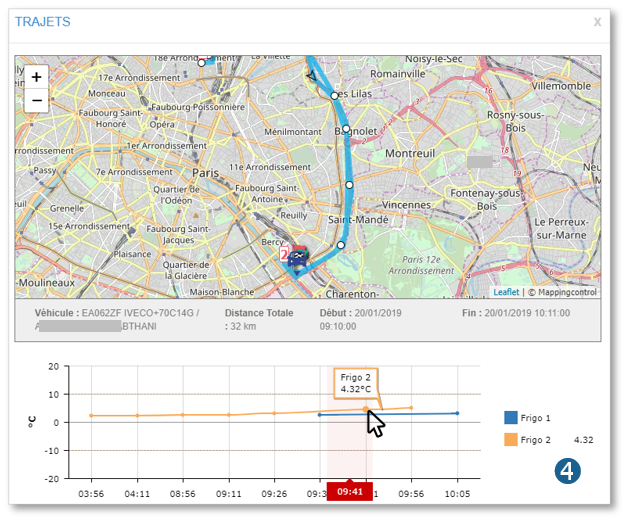
4. Click on a probe to display the day’s routes with temperature reading curves.

No temperature reading: Only the maximum threshold is set

2 temperature readings: BUT ALERT because only the maximum threshold is set
Set up the temperature sensors
Open the file of the concerned vehicle and display the tab EQUIPMENT.
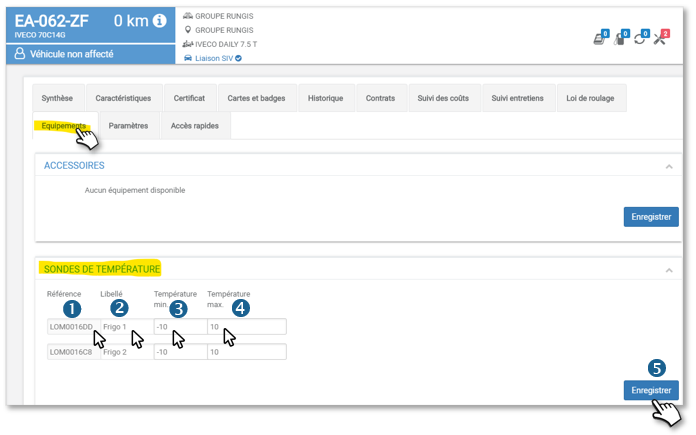
You can configure 1 to 4 temperature sensors. Please enter the following information:
1. The Tag ID: the installing technician or our Technical Support will fill in this field: this is the reference of the probe.
2. The name of the probe that will appear in the application: map, reports, routes….
3. The minimum temperature allowed: do not forget the ‘-‘ sign if it is a negative temperature.
4. The maximum temperature allowed.
En cas de dépassement d’un de ces seuils, le pictoapparaîtra dans le widget.
If one of these thresholds is exceeded, the picto  will appear in the widget.
5. Don’t forget to SAVE.
Access the history of temperature alerts
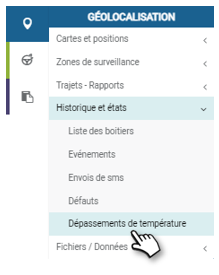
This screen allows you to display a list of temperature alerts over a given period. By default, ALL alerts for ALL vehicles over the last 30 days are displayed.
You can of course filter the display of alerts using 3 criteria:
1. Click to change the analysis period.
2. Click to select the desired vehicle(s).
3. Click to filter the alerts: all, below threshold or above threshold.
4. Click the APPLY button to display the result in the table below.
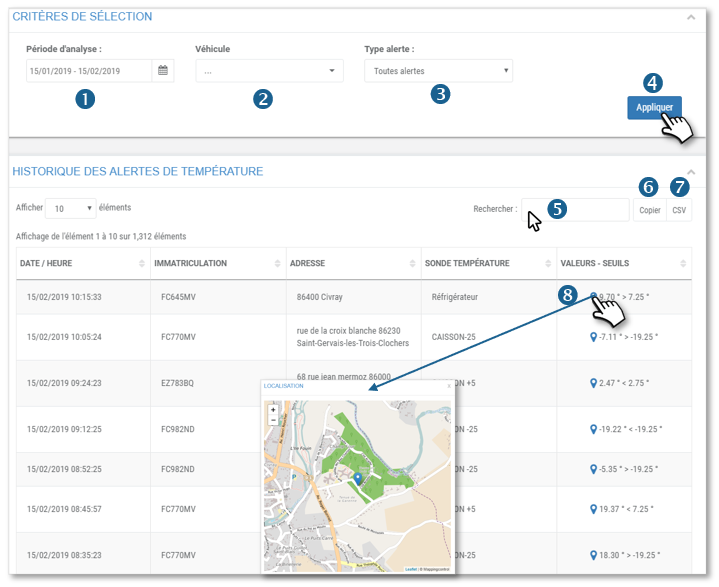
5. You can search the list by keyword.
6. You can copy the contents of the table to paste it into another document.
7. You can export the table content in .csv format.
8. Click to display the alert point on the map.The alerts can be viewed from the home page by clicking on the temperature icon. Then you just have to click on one of them to access the history page below.