
Presentation of the assignment centers
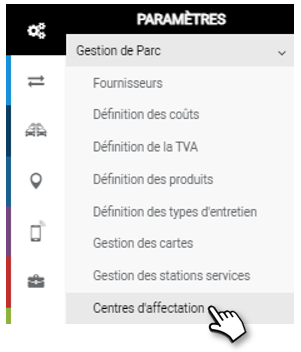
What are assignment centers for?
Assignment Centers are asset and cost pooling entities.
Each Center will be assigned vehicles, drivers, payment/service cards and all their associated costs.
The utility is twofold:
- Analytique : l’analyse des coûts et du TCO pourra être faite automatiquement par Centre.
- Fonctionnelle : dans toute l’application, vous pourrez faire des sélections par Centre d’affectation pour vos tris et filtres.
What do you find in an assignment center?
There are 4 sections in the creation of an assignment center that we will detail in the following pages:
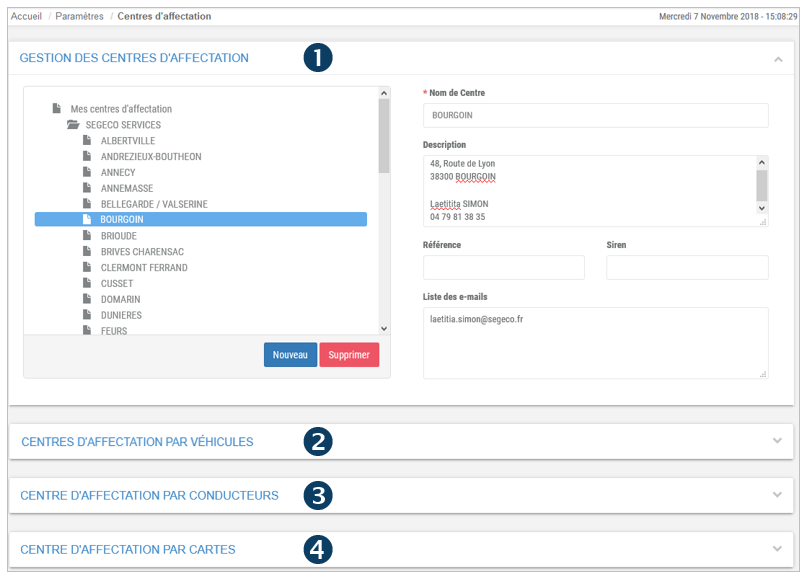
1. The creation of the ARBORESCENCE of your ORGANIZATION
2. Assignment of vehicles to the centers
3. ASSIGNMENT OF DRIVERS in the Centers
4. CARD ASSIGNMENT in the Centers
Create and organize assignment centers
Organize and create as many centers as you want according to your internal organization.
There are two types of Assignment Centers:
- An “analytical” asset grouping center
- A “billable” center: this is a legal entity (e.g. a separate company) that can carry invoices. It is distinguished by providing the SIREN number.
InfoWhen entering an invoice, only billable centers can be selected
1. Place your cursor over “My Assignment Centers” and click NEW to create a center. Click NEW again and you will create a sub-center, etc.
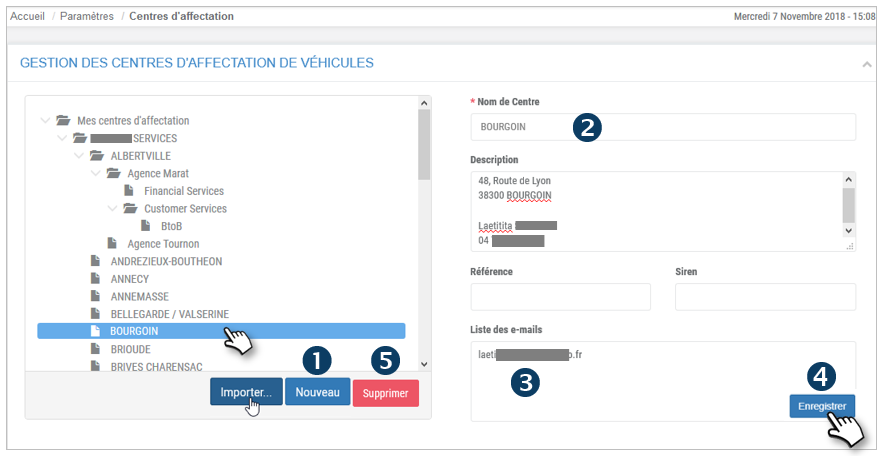
No need to SAVE, the action is automatically saved.
2. Enter a name for this center and fill in the contact information.
3. The emails entered in this field will receive alerts related to this center. Separate the addresses with ‘, ‘.
4. Do not forget to SAVE.
5. When you DELETE a Center that contains Sub-Centers. Only the Center is deleted; the Sub-Centers remain and move up one hierarchical level (e.g. a Sub-Center becomes a Center, etc).
 = Center containing other Sub-Centers
 = Last level centerInfo
If you don’t have any centers, you can import the tree structure of your geolocation groups or carsharing pools and the distribution of your vehicles by clicking on the IMPORT button
You can move a Center to another one by clicking on the Center to move and dragging and dropping it to the new Center.
Editing vehicles in an affection center
Add vehicle(s) to a center
1. Select the appropriate center (highlighted)
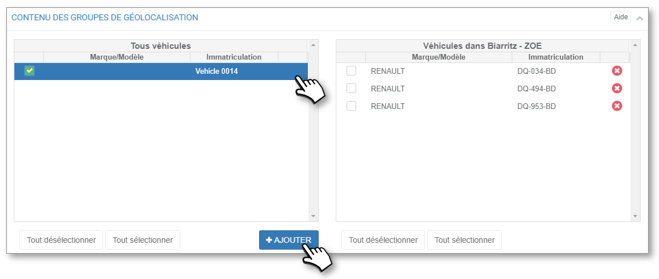
2. In the left column (All vehicles): check the boxes of the concerned vehicles and click on the button ‘ADD’ or click on the blue arrows of the concerned vehicles.
3. The vehicles will move from the left column to the right column in the concerned center.
4. No need to validate or SAVE, the action is immediate.
Remove vehicle(s) from a center
1. Select the appropriate center (highlighted)
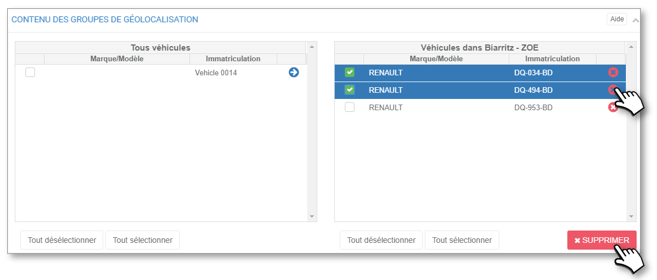
2. In the right column (concerned center): check the boxes of the concerned vehicles and click on the button ‘DELETE’ or click on the red crosses of the concerned vehicles.
3. The vehicles will move from the right column to the left column (All vehicles).
4. No need to validate or SAVE, the action is immediate.NB: The vehicles are not really deleted, they are switched to the general list of vehicles without assignment center.
Modify the drivers of an assignment center
Add one or more driver(s) in a center
1. Select the appropriate center (highlighted)
2. In the left column (Remaining drivers): check the boxes of the concerned drivers and click on the ‘ADD’ button or click on the blue arrows of the concerned drivers.
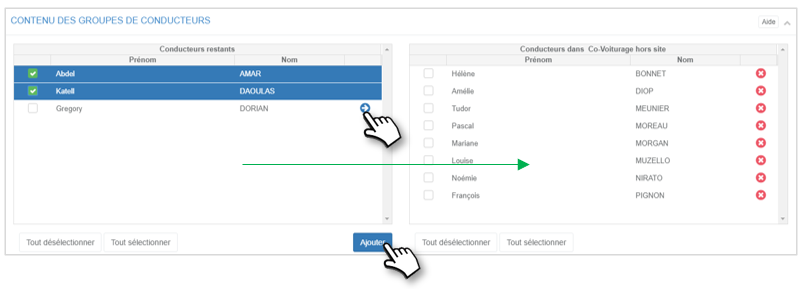
3. Drivers will move from the left column to the right column in the respective center.
4. No need to validate or SAVE, the action is immediate.
Remove one or more driver(s) from a center
1. Select the appropriate center (highlighted)
2. In the right column (concerned group): tick the boxes of the concerned drivers and click on the ‘DELETE’ button or click on the red crosses of the concerned drivers.
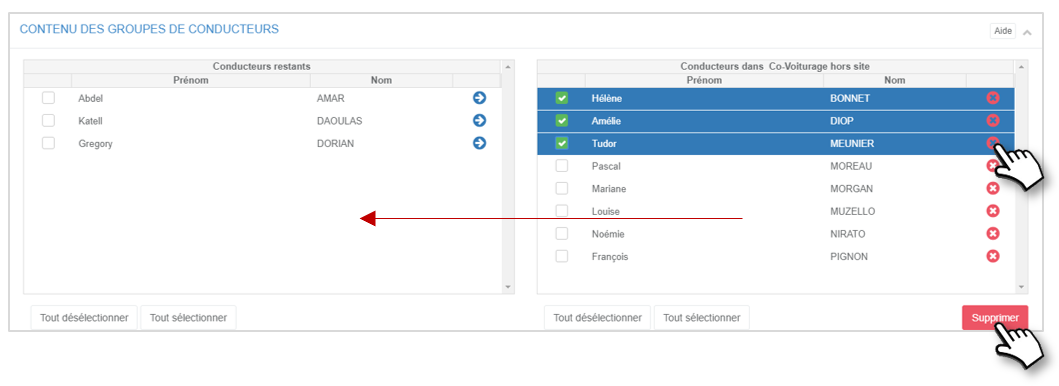
3. The drivers will move from the right column to the left column (Remaining Drivers).
4. No need to validate or SAVE, the action is immediate.Drivers are not “deleted”, they are switched to the general list of drivers that will appear in a “Not assigned” center.
Modify the payment or service cards of an assignment center
Add one or more card(s) in a center
1. Select the appropriate center (highlighted)
2. In the left column (Remaining drivers): check the boxes of the concerned cards and click on the ‘ADD’ button or click on the blue arrows of the concerned cards.
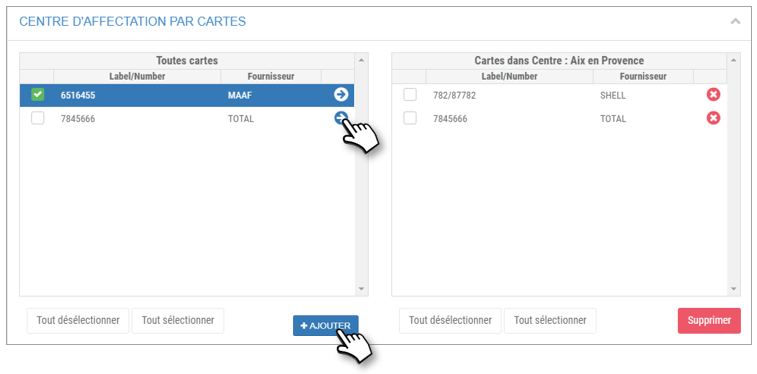
3. The cards will move from the left column to the right column in the respective center.
4. No need to validate or SAVE, the action is immediate.
Remove one or more card(s) from a center
1. Select the relevant card (highlighted)
2. In the right column (center concerned): check the boxes of the concerned cards and click on the ‘DELETE’ button or click on the red crosses of the concerned cards.
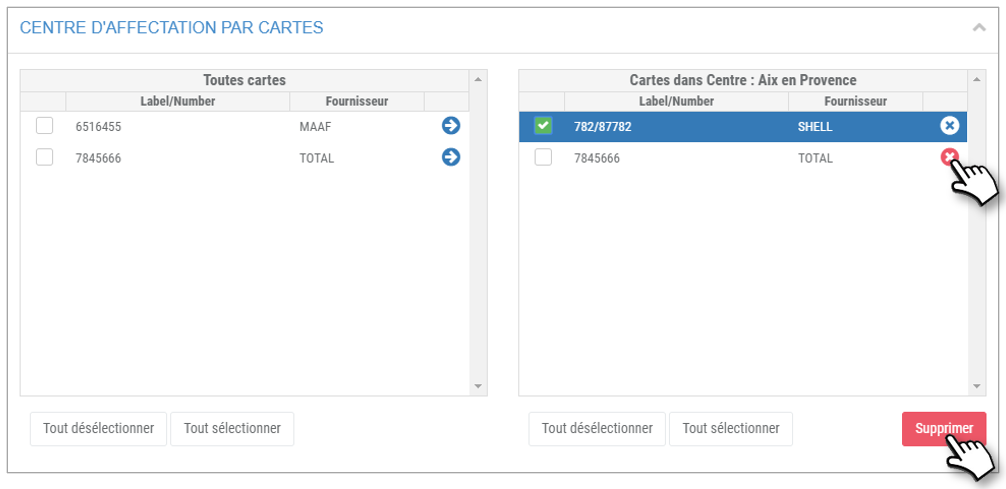
3. The cards will move from the right column to the left column (All cards).
4. There is no need to validate or SAVE, the action is immediate.The cards are not “deleted”, they are switched to the general list of cards without an assignment center.