
Skip to the content
SecuriTrack HelpcenterSecuriTrack Helpcenter
  • English
    • Français
    • Español
    • Português
  • English
    • Français
    • Español
    • Português

First steps

  • Your vehicles
  • Your drivers
  • Assignment of vehicles
  • Vehicle groups
  • Groups of drivers
  • Management of access rights
  • User management
  • Vehicle display

Geolocation

  • Home page
  • Driver charter
  • The routes
  • Monitoring areas
  • Trailers and dumpsters
  • History of events
  • Fuel level
  • Address book
  • Immobilizing a vehicle
  • Blocking the taximeter
  • Share location

Fleet Management

  • Dashboard
  • Vehicle file
  • Driver record
  • Statistics
  • TCO
  • History
  • Follow-up invoices
  • Follow-up costs
  • Follow-up contracts
  • Follow-up incidents
  • Follow-up of interventions
  • Follow-up of maintenance
  • Follow-up of damages
  • Follow-up of fines
  • Follow-up of vehicle defects
  • Suppliers
  • Definition of costs
  • Definition of VAT
  • Definition of products
  • Definition of the types of maintenance
  • Cards and badges management
  • Fuel station management
  • Allocation centers
  • Vehicle equipment
  • Equipment allocation
  • Driver’s license presentation
  • Multi-fleet manager

Fuel Monitoring

  • Consumption monitoring
  • Heavy trucks

Eco-driving

  • Setting
  • Data analysis
  • Challenges

Temperature Monitoring

  • Temperature management

Cards and badges management

Table of Contents
  • Manage payment and service cards
  • SAVE a new payment/service card

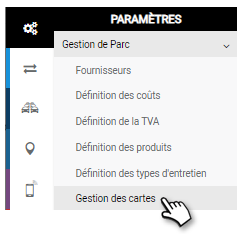
Manage payment and service cards
Filter your card search by several criteria:

(By default, all cards from all providers and centers are displayed).

1. Supplier 

2. Assignment center

3. Click to select the archived cards 

4. Click on APPLY 

The list of cards is displayed:
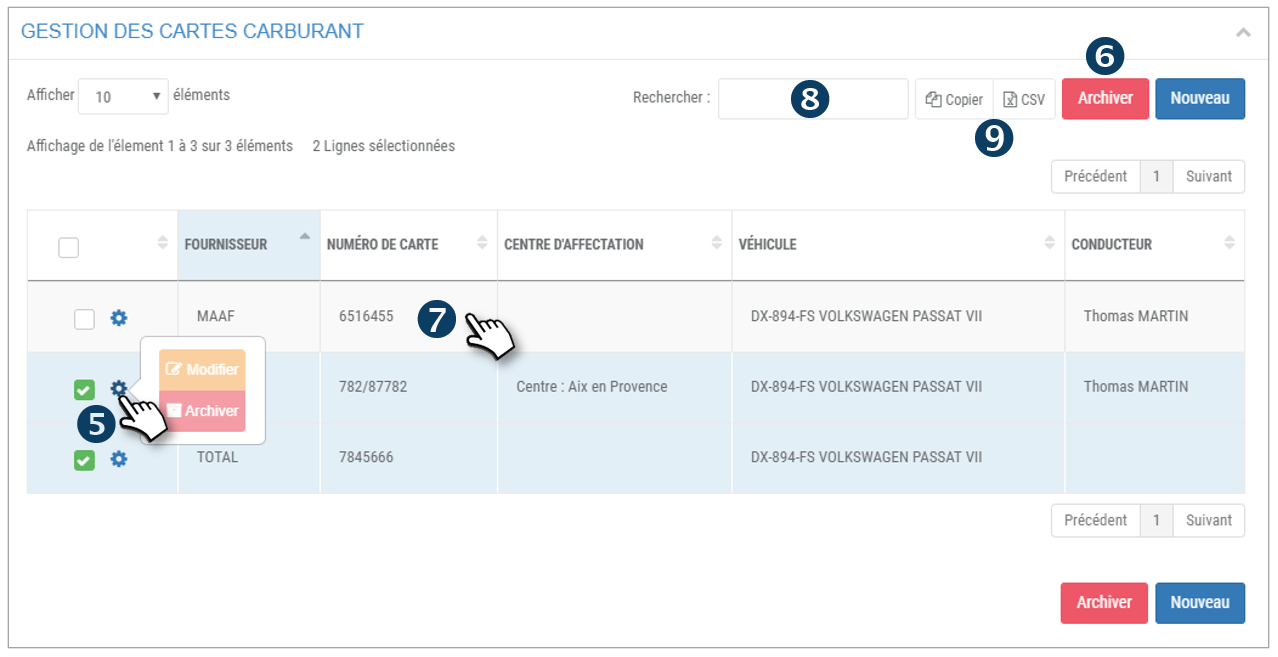
5. For each incident, click on  to display 2 options: Modify or Archive the card.

6. You can also make a multi-selection by checking the boxes of the concerned rows and click on the ARCHIVE button.

“Archiving” means deactivating the card, not deleting it in the application. It corresponds to a loss, end of validity, cancellation, etc….  This makes the card unavailable and invisible in the active menus but all data and costs generated by this card are kept in the application.

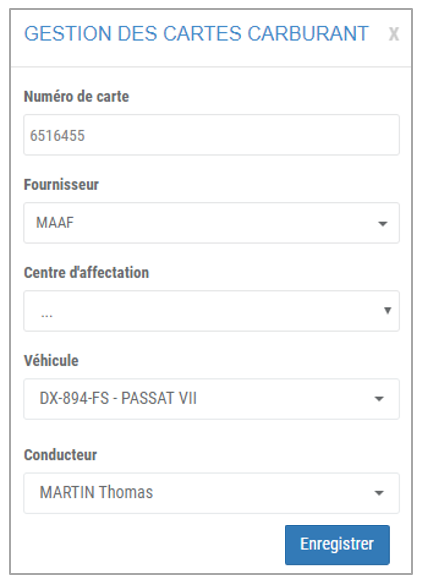
7. Click on MODIFY or double-click on a line to open the details of a CARD and modify it if necessary:
8. You can search by keyword by entering the beginning of the word you are looking for.

9. You can copy the content of the table or export it in .csv format.

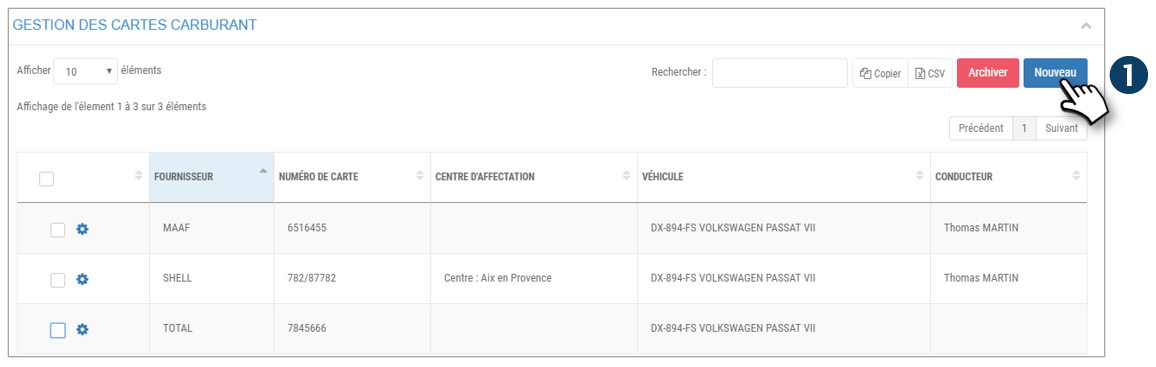
SAVE a new payment/service card

1. Click on NEW
In the window that has just opened, fill in the following information:
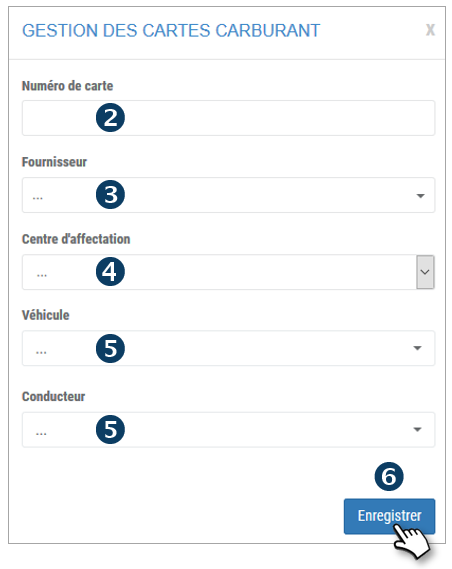
2. Card number 

3. Select a Supplier

4. Select an Assignment Center

5. Select a Vehicle and/or Driver

6. Don’t forget to SAVE 

7. The card has been added and is visible in the list of cards.Info

The assignment of the card is not mandatory to SAVE a card.

You can assign this card in the “Assignment centers”, “Driver record” or “Vehicle record” section.

Cet article vous a-t-il été utile ?
Updated on 16 March 2022
Definition of the types of maintenanceFuel station management
Table of Contents
  • Manage payment and service cards
  • SAVE a new payment/service card

© 2026 SecuriTrack Helpcenter

Powered by WordPress

To the top ↑ Up ↑