
Search and display all saved incidents
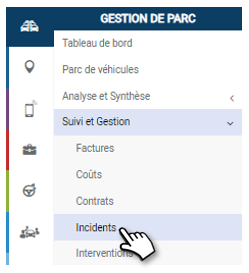
Filter your incident search by several criteria:
1. Type of incident: accident, fine, impound, breakdown, damage…..
2. Status: in progress, final, initial.
3. Period: select a period from date to date.
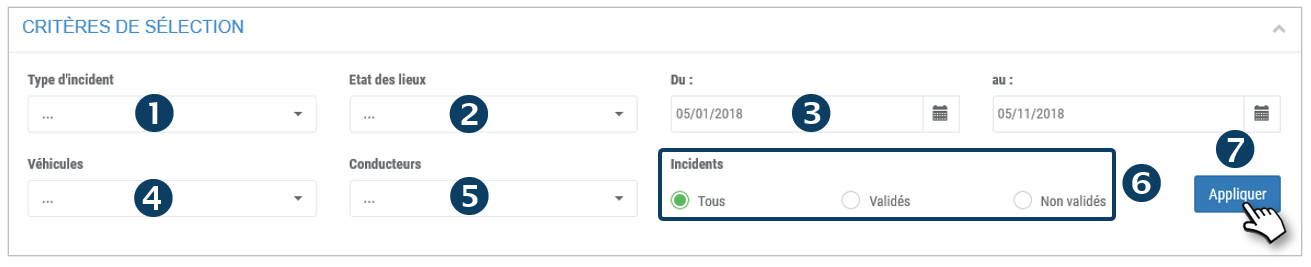
4. Vehicles: Select one or more vehicles or assignment centers.
5. Drivers: select one or more drivers or driver groups.
6. Incidents: all, validated, non-validated
7. Click on APPLY
The list of incidents is displayed:
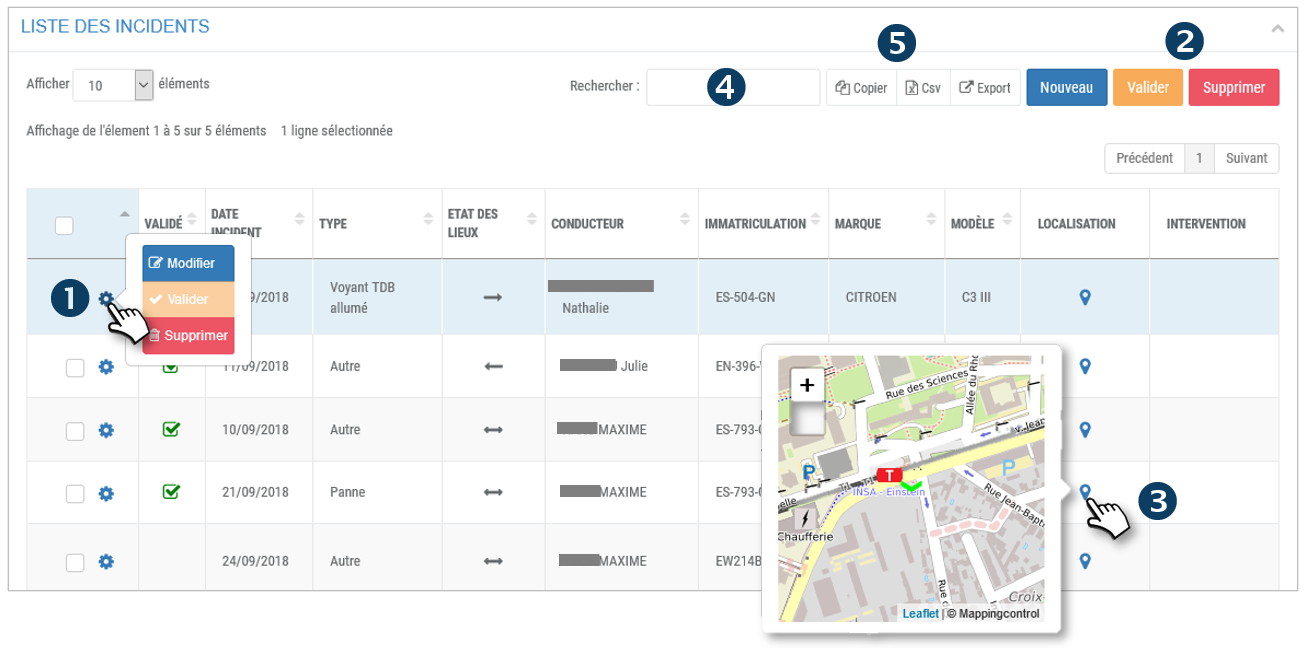
1. For each incident, click on  to display 3 options: Modify, Validate or Delete the incident.
2. You can also make a multi-selection by checking the boxes of the concerned lines and click on the VALIDATE or DELETE button.
3. Click on  to display the location of the incident on a map.
4. You can search by keyword by entering the beginning of the word you are looking for.
5. You can copy the content of the table or export it in .csv format.
Report a new incident
Drivers can report an incident but managers can also report on their behalf.
Enter the form fields or select the options:
1. Type of incident: accident, fine, impound, breakdown, damage…..
2. Other: details on the type “Other”.
3. Vehicles: select the vehicle concerned
4. Drivers : select the driver concerned.
5. Status: current, final, initial.
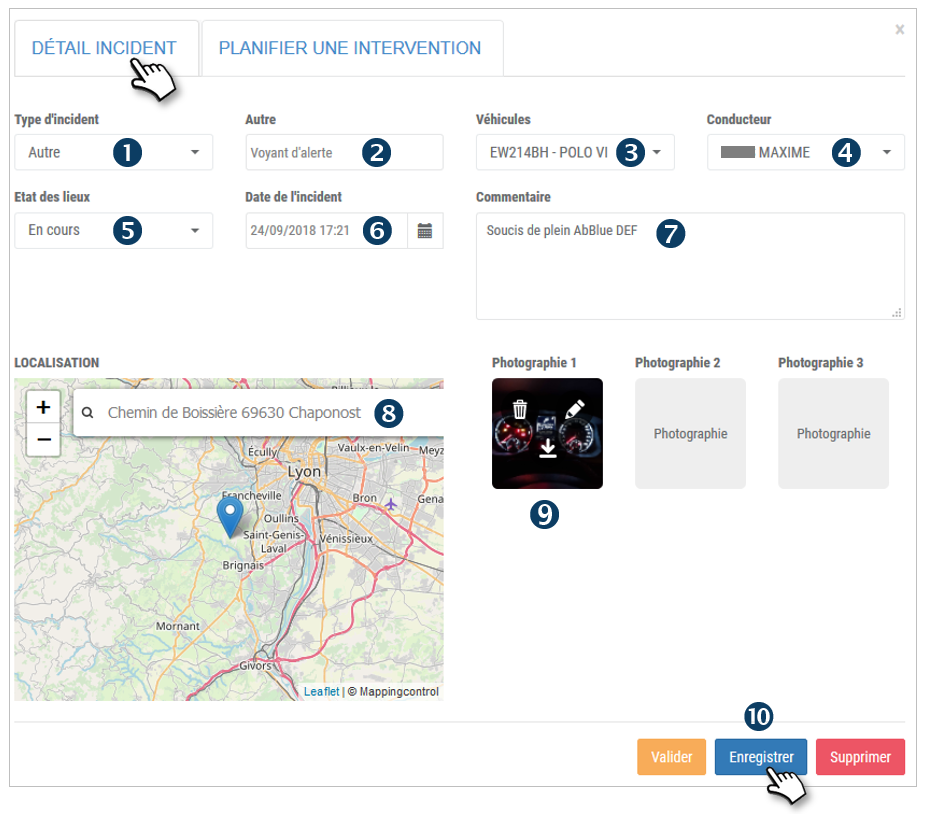
6. Date of incident
7. Comment: if applicable.
8. Location: enter the address or click directly on the map at the desired location. The pointer will be placed.
9. Photographs: it is possible to upload up to 3 images.
10. Don’t forget to SAVE
 Click to validate the incident

Click to delete the incident
Planning an intervention
After validating an incident, plan the intervention to restore the vehicle and regularly update the status of the intervention.
Open the record of an incident:
Click on EDIT or double-click on the relevant line.

Enter the form fields or select the options :
1. Vehicle: the vehicle is pre-selected and cannot be changed.
2. Type of intervention : bodywork, breakdown service, maintenance, tires…
3. Check if the intervention requires the immobilization of the vehicle.
4. Period : select the period of immobilization (from date to date)
5. Intervention number, date, authorization number, amount before tax: fill in this information when it is known.
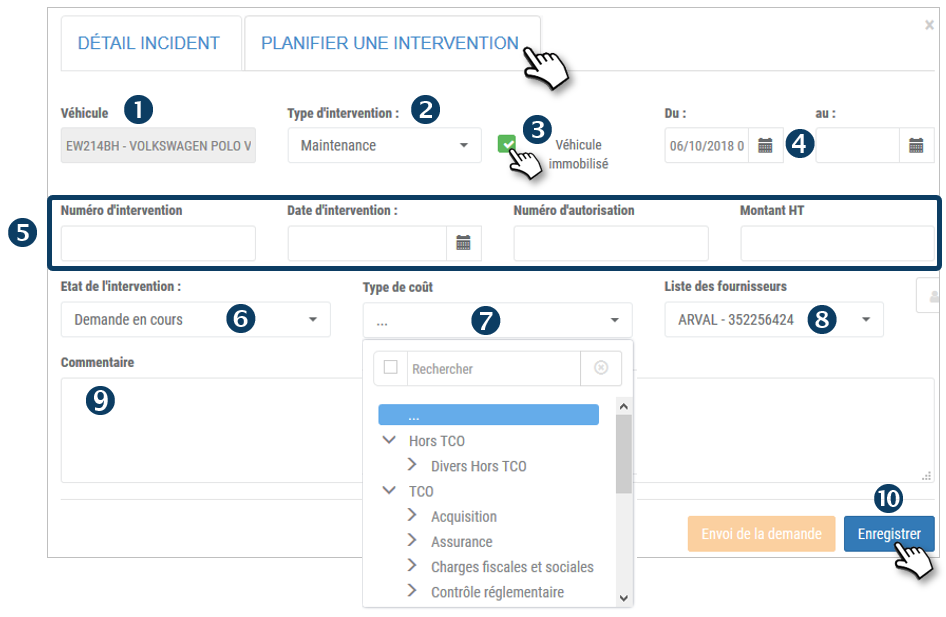
6. Status of the intervention: update the status of the intervention according to the choices offered.
7. Type of cost: select from the options provided.
8. Supplier list: select the supplier or the referenced provider (previously SAVE in the supplier list (SETTINGS)
9. Comment: if applicable.
10. Don’t forget to SAVE

Click to send the intervention request by email to the selected supplier/provider.