
Skip to the content
SecuriTrack HelpcenterSecuriTrack Helpcenter
  • English
    • Français
    • Español
    • Português
  • English
    • Français
    • Español
    • Português

First steps

  • Your vehicles
  • Your drivers
  • Assignment of vehicles
  • Vehicle groups
  • Groups of drivers
  • Management of access rights
  • User management
  • Vehicle display

Geolocation

  • Home page
  • Driver charter
  • The routes
  • Monitoring areas
  • Trailers and dumpsters
  • History of events
  • Fuel level
  • Address book
  • Immobilizing a vehicle
  • Blocking the taximeter
  • Share location

Fleet Management

  • Dashboard
  • Vehicle file
  • Driver record
  • Statistics
  • TCO
  • History
  • Follow-up invoices
  • Follow-up costs
  • Follow-up contracts
  • Follow-up incidents
  • Follow-up of interventions
  • Follow-up of maintenance
  • Follow-up of damages
  • Follow-up of fines
  • Follow-up of vehicle defects
  • Suppliers
  • Definition of costs
  • Definition of VAT
  • Definition of products
  • Definition of the types of maintenance
  • Cards and badges management
  • Fuel station management
  • Allocation centers
  • Vehicle equipment
  • Equipment allocation
  • Driver’s license presentation
  • Multi-fleet manager

Fuel Monitoring

  • Consumption monitoring
  • Heavy trucks

Eco-driving

  • Setting
  • Data analysis
  • Challenges

Temperature Monitoring

  • Temperature management

Follow-up of vehicle defects

Table of Contents
  • Display of vehicle fault codes

Display of vehicle fault codes

Attention !This feature requires a special telematics box

Filter your defect alerts search according to several criteria (by default all vehicles and all defects are selected over the last 30 days):

1. Period: select a date range.

2. Vehicles: Select one or more vehicles or assignment centers.

3. Fault origin : from the ECU or interpreted.

4. Category : 1 to 14 categories of defects.

5. Click on APPLY 

The list of defects is displayed:
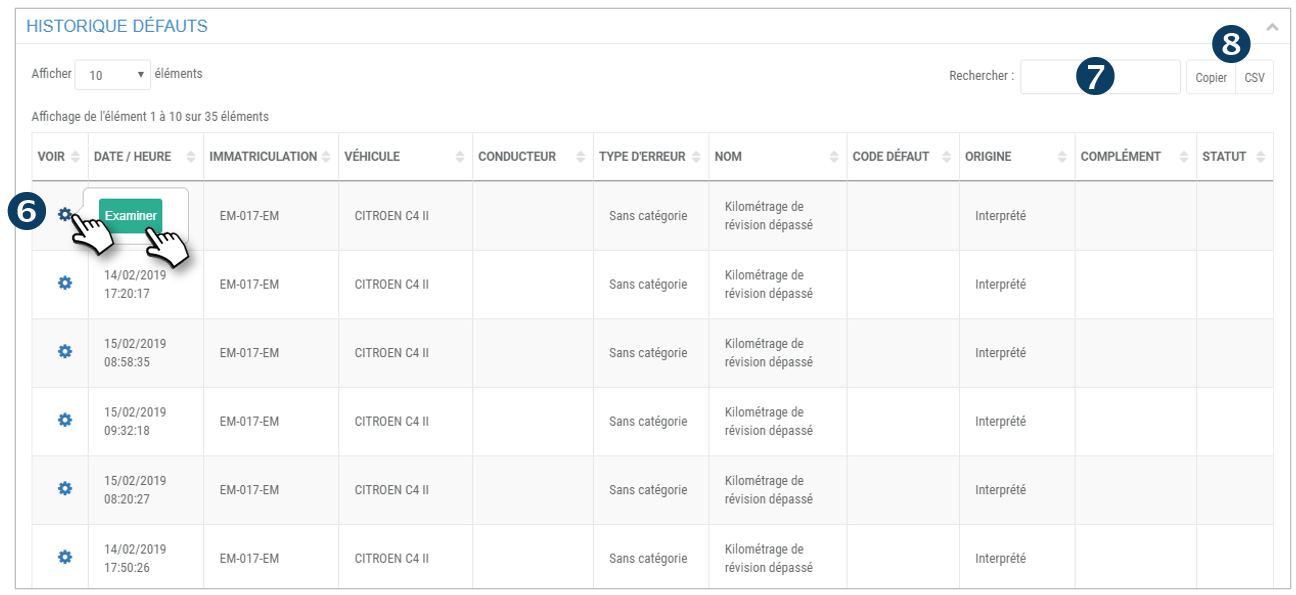
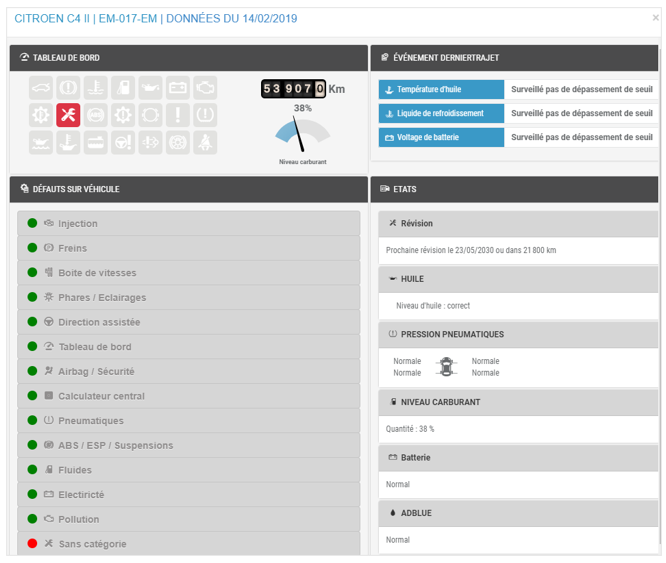
6. For each fault, click on  and then on EXAMINE to display the data from the telematics box:
7. You can search by keyword by entering the beginning of the word you are looking for.

8. You can copy the content of the table or export it in .csv format.

Cet article vous a-t-il été utile ?
Updated on 15 March 2022
Follow-up of finesSuppliers
Table of Contents
  • Display of vehicle fault codes

© 2026 SecuriTrack Helpcenter

Powered by WordPress

To the top ↑ Up ↑