
Skip to the content
SecuriTrack HelpcenterSecuriTrack Helpcenter
  • English
    • Français
    • Español
    • Português
  • English
    • Français
    • Español
    • Português

First steps

  • Your vehicles
  • Your drivers
  • Assignment of vehicles
  • Vehicle groups
  • Groups of drivers
  • Management of access rights
  • User management
  • Vehicle display

Geolocation

  • Home page
  • Driver charter
  • The routes
  • Monitoring areas
  • Trailers and dumpsters
  • History of events
  • Fuel level
  • Address book
  • Immobilizing a vehicle
  • Blocking the taximeter
  • Share location

Fleet Management

  • Dashboard
  • Vehicle file
  • Driver record
  • Statistics
  • TCO
  • History
  • Follow-up invoices
  • Follow-up costs
  • Follow-up contracts
  • Follow-up incidents
  • Follow-up of interventions
  • Follow-up of maintenance
  • Follow-up of damages
  • Follow-up of fines
  • Follow-up of vehicle defects
  • Suppliers
  • Definition of costs
  • Definition of VAT
  • Definition of products
  • Definition of the types of maintenance
  • Cards and badges management
  • Fuel station management
  • Allocation centers
  • Vehicle equipment
  • Equipment allocation
  • Driver’s license presentation
  • Multi-fleet manager

Fuel Monitoring

  • Consumption monitoring
  • Heavy trucks

Eco-driving

  • Setting
  • Data analysis
  • Challenges

Temperature Monitoring

  • Temperature management

Groups of drivers

Table of Contents
  • Setting up driver groups
  • Assigning drivers to groups
    • Add driver(s) to a group
    • Remove driver(s) from a group :

Setting up driver groups
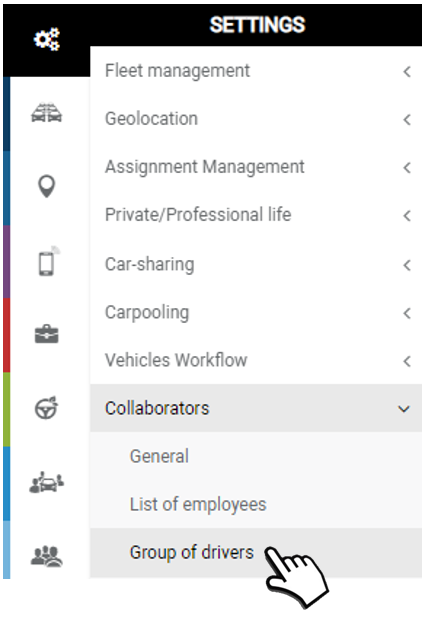
Organise and create as many groups as you want according to your internal organisation. Enter a name and the characteristics of this group and do not forget to SAVEYou can move one group into another by clicking on the group to be moved and dragging and dropping it into the new group

Email list: The emails entered in this field will receive alerts related to this group of drivers.
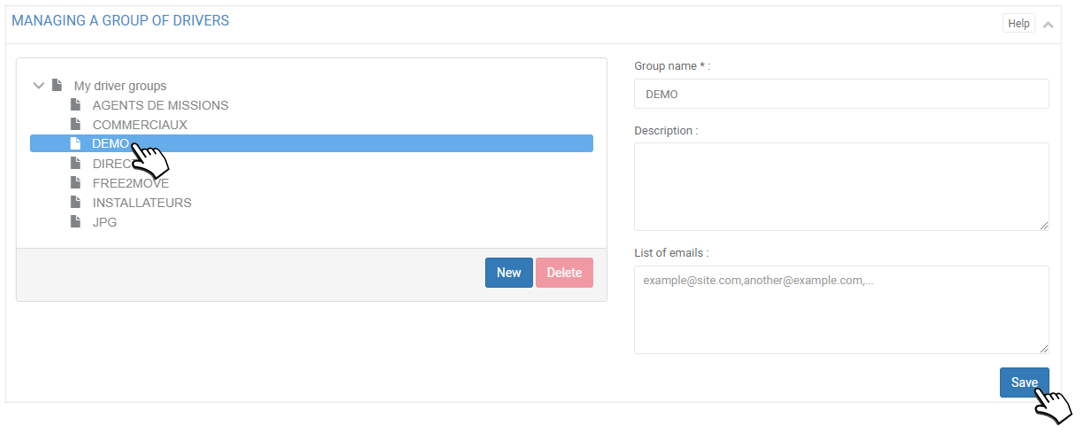
Separate the addresses with “;”.

Assigning drivers to groups

Add driver(s) to a group

1. Select the relevant group (highlighted)

2. In the left-hand column (Remaining Drivers): tick the boxes of the relevant drivers and click the ‘ADD’ button or click the blue arrows of the relevant drivers.
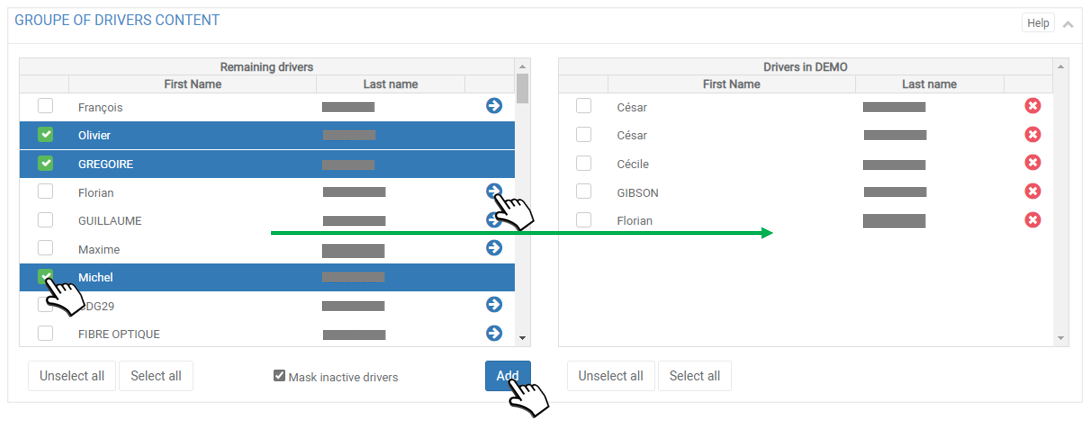
3. Drivers will move from the left column to the right column in the relevant group.

4. No need to validate or SAVE, the action is immediate.

Remove driver(s) from a group :

1. Select the relevant group (highlighted)

2. In the right-hand column (relevant group): tick the boxes of the relevant drivers and click on the ‘DELETE’ button or click on the red crosses of the relevant drivers.
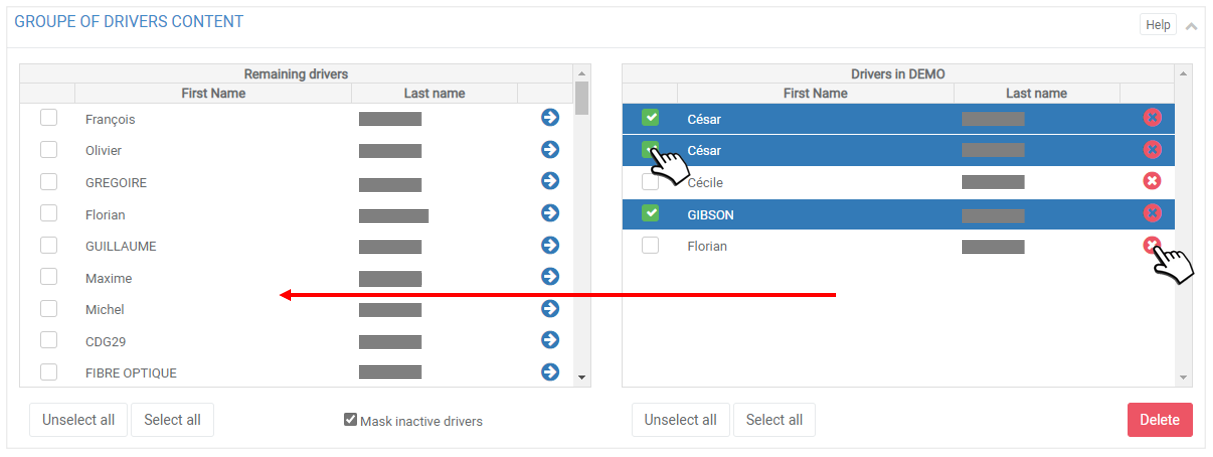
3. The conductors will move from the right column to the left column (Remaining conductors).

4. No need to validate or SAVE, the action is immediate.The drivers are not “deleted”, they are switched to the general list of drivers which will appear in a “Not assigned” group.

The list of employees includes the group to which they belong.

Cet article vous a-t-il été utile ?
Updated on 11 March 2022
Vehicle groupsManagement of access rights
Table of Contents
  • Setting up driver groups
  • Assigning drivers to groups
    • Add driver(s) to a group
    • Remove driver(s) from a group :

© 2026 SecuriTrack Helpcenter

Powered by WordPress

To the top ↑ Up ↑