
Vehicle position on the map
1. Move your cursor over a vehicle, a thumbnail appears with the main information about this vehicle: registration, ignition on/off, speed (if applicable), make, model, group, driver. When several vehicles are located close to each other, a sticker is displayed with the number of vehicles concernedZoom in on the map to see the vehicles clearly.
2. Move your cursor over the dot and the list of vehicles appears.
3. Click on the pictogram of a vehicle to zoom in on that vehicle.
The different sections
Your homepage is the dashboard of your business. It contains all the elements to visualise the status of your vehicle fleet and to take action in one click.
Your homepage is made up of several sections:
The top banner
The search and selection bars allow you to select one or more vehicles or a group. This selection will be used as a filter for all the services you will navigate through. The pages will be displayed WITH the selected vehicle(s).
- The search bar allows you to search for a driver or a vehicle and to display its record.
- Click on the icon
 to select the department from which you will select the group(s) or vehicle(s) next to it (3).
 - Select the desired group(s) or vehicle(s).
.gif)
The tool bar
Shortcuts to quickly access several geolocation features on the map
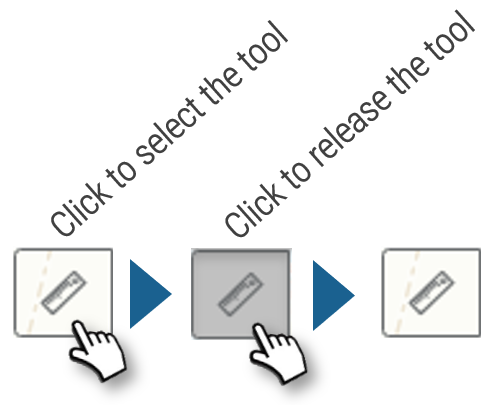
 Measuring distances
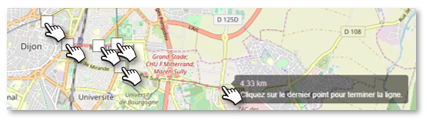
This tool allows you to measure the distance between several points on the map.
Click on the starting point, then click on any stages and finally on the finishing point. The distance is displayed as you move the mouse.
 Marking a position on the map
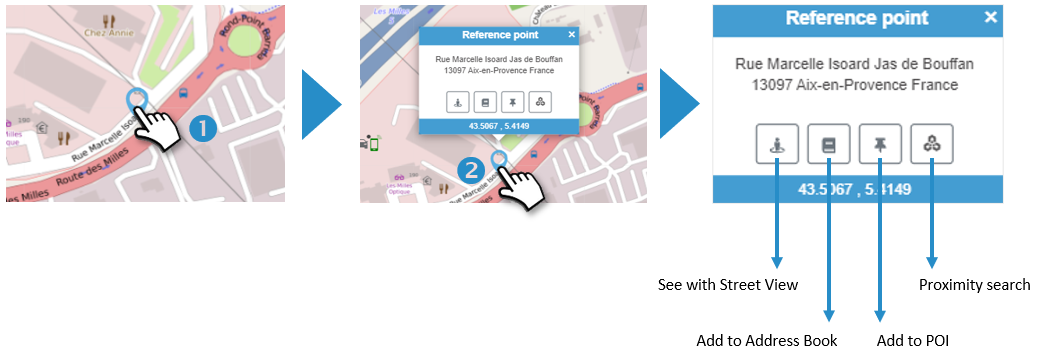
This tool allows you to point to a position on the map and access several options:
1. Click on the desired location on the map. A pointer appears :
2. Click on the pointer. The address is displayed with several icons offering several options:
 Drawing a route
This tool allows you to calculate and plot the fastest route between 2 addresses
1. Enter the starting address. Select the correct address from the drop-down list that appears and confirm with the ‘ENTER’ key on the keyboard.
2. Enter the destination address. Select the correct address from the drop-down list that appears and press ‘ENTER’ on the keypad.
3. Click the button  to display the route on the map
4. Time and distance are displayed

 Clear form
 Print route
 Proximity research
This tool allows you to find the nearest vehicles to an address you define.
1. Enter the address. Select the correct address from the drop-down list that appears and confirm with the ‘ENTER’ key on the keyboard.
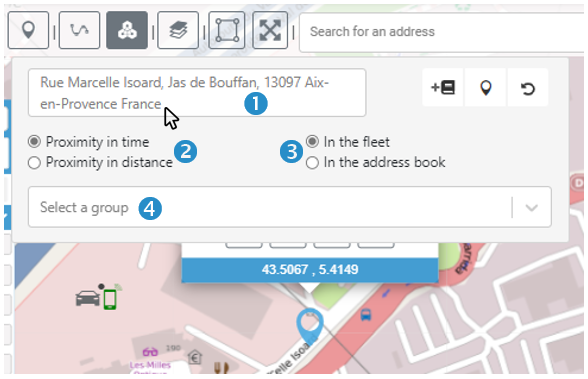
You can also enter the name of an address in your Address Book and then click on  Select the address if there is more than one in the book.
2. Select whether you want proximity in time or distance (Default is In time).
3. Select whether you are looking for vehicles or sites nearby (Default Vehicles)
4. Select a Group of vehicles or addresses (All by default)
5. Press ENTER to start the search
6. The 5 nearest vehicles/sites are displayed with the vehicle registration, the name of the driver and the address at which he/she is located, as well as the distance and time taken to get to the address concerned.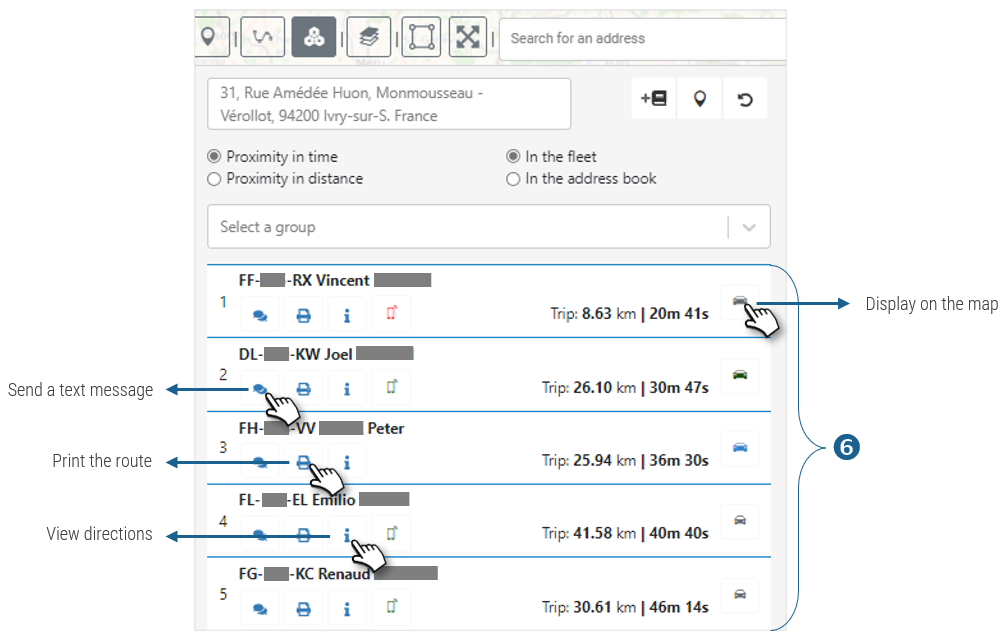
The fleet module
The module informs you about the status of your vehicles in real time
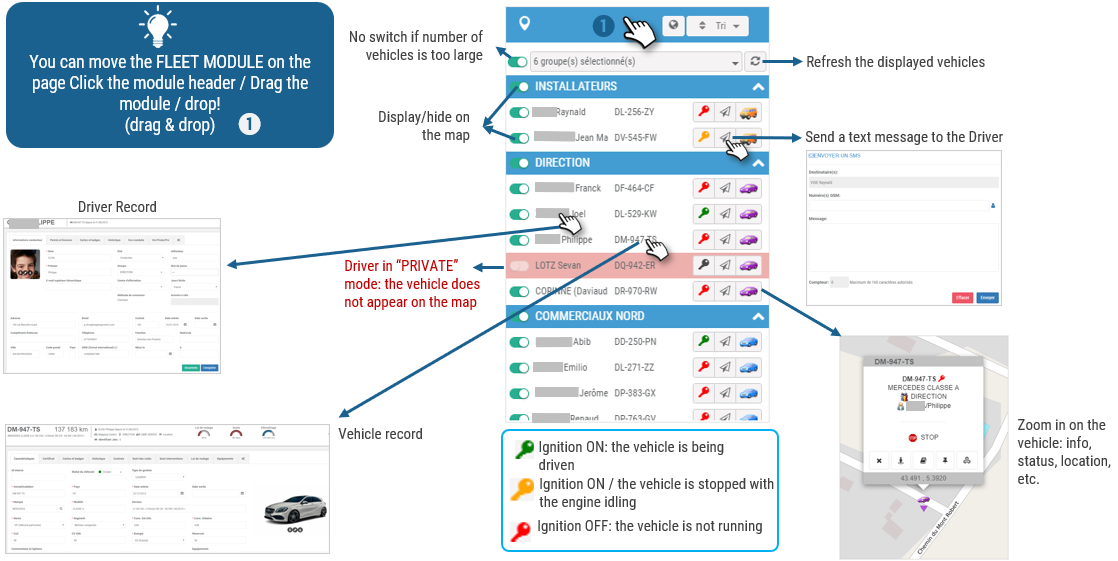
Information about a vehicle
Select a vehicle and access a wide range of data about it:
1. Select a vehicle in the MODULE.
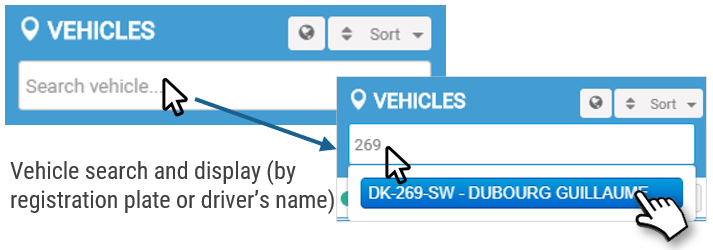
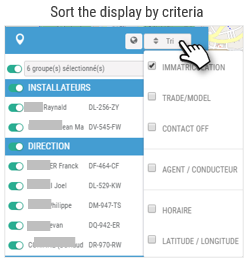
2. WIDGETS are displayed with data and links to other data:
3. VEHICLE INFORMATION: description of the vehicle
4. LOCATION: latest information on vehicle movement and status of the telematics box.

5. DEVICES: options present on the box
6. DAY’S TRAVEL: click to view the journeys made: route and speeds (available for 2 months, see RGPD).
7. LAST ROUTE: click to view the last route taken: route and speeds (available for 2 months, see RGPD).
Access to the general map
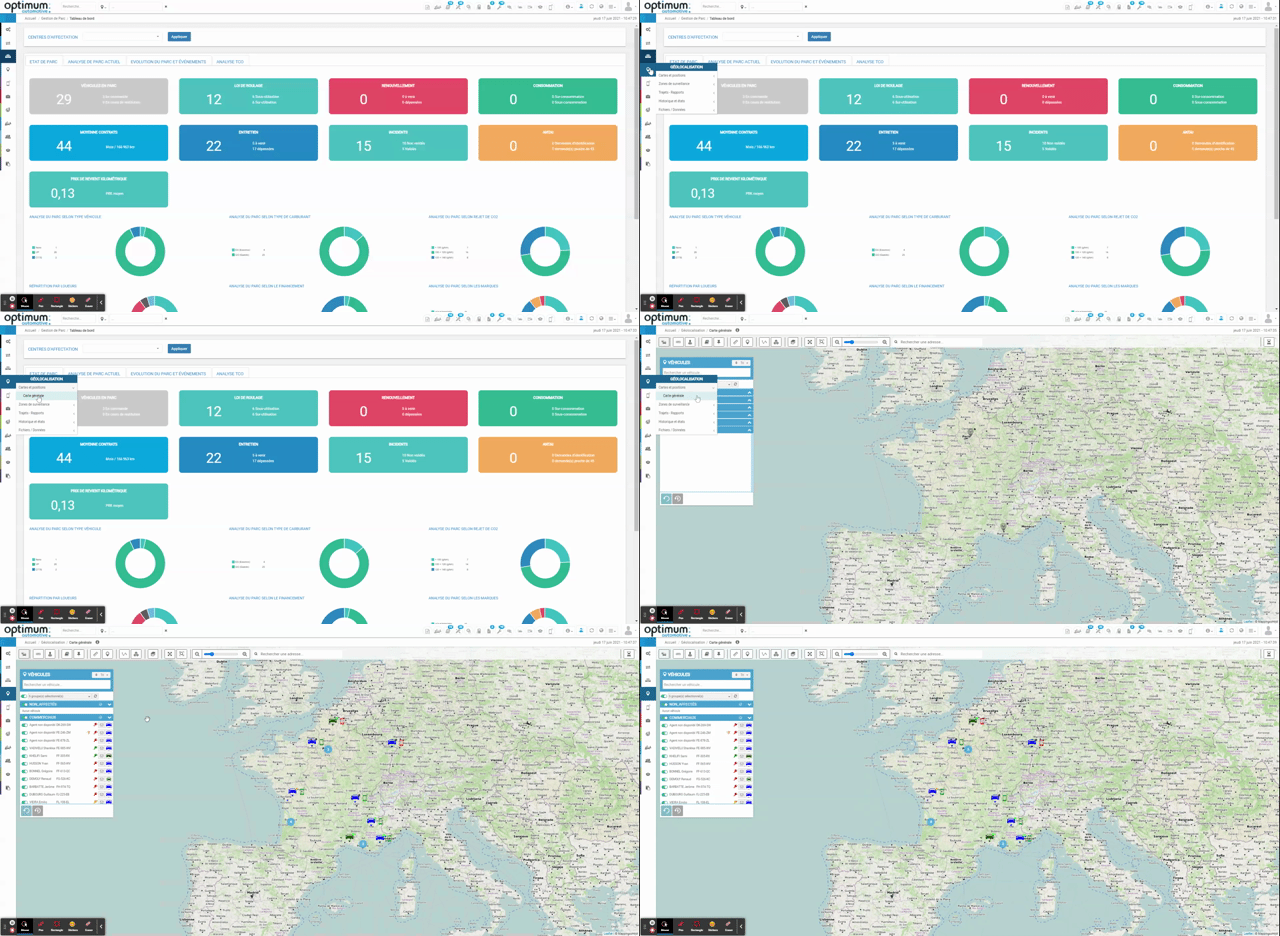
The map is also accessible by clicking on the globe at the top right:
