
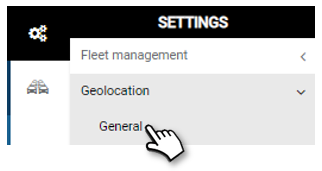
Skip to the content
SecuriTrack HelpcenterSecuriTrack Helpcenter
  • English
    • Français
    • Español
    • Português
  • English
    • Français
    • Español
    • Português

First steps

  • Your vehicles
  • Your drivers
  • Assignment of vehicles
  • Vehicle groups
  • Groups of drivers
  • Management of access rights
  • User management
  • Vehicle display

Geolocation

  • Home page
  • Driver charter
  • The routes
  • Monitoring areas
  • Trailers and dumpsters
  • History of events
  • Fuel level
  • Address book
  • Immobilizing a vehicle
  • Blocking the taximeter
  • Share location

Fleet Management

  • Dashboard
  • Vehicle file
  • Driver record
  • Statistics
  • TCO
  • History
  • Follow-up invoices
  • Follow-up costs
  • Follow-up contracts
  • Follow-up incidents
  • Follow-up of interventions
  • Follow-up of maintenance
  • Follow-up of damages
  • Follow-up of fines
  • Follow-up of vehicle defects
  • Suppliers
  • Definition of costs
  • Definition of VAT
  • Definition of products
  • Definition of the types of maintenance
  • Cards and badges management
  • Fuel station management
  • Allocation centers
  • Vehicle equipment
  • Equipment allocation
  • Driver’s license presentation
  • Multi-fleet manager

Fuel Monitoring

  • Consumption monitoring
  • Heavy trucks

Eco-driving

  • Setting
  • Data analysis
  • Challenges

Temperature Monitoring

  • Temperature management

Vehicle display

Table of Contents
  • Confidentiality of journeys
  • Display speeds
  • Private/Pro modification
  • Vehicle display settings

Confidentiality of journeys

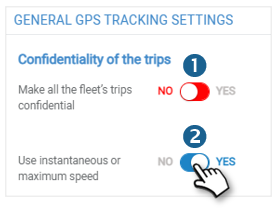
You can choose to display vehicles on the map (last position) but not have access to their routes.

1. To do this, position the cursor on YES
Display speeds

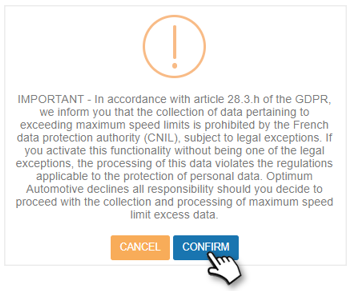
The GDPR prohibits the collection of speeds. That is why we do not display them by default (slider on NO).However, you can decide to ignore the recommendations of the CNIL and the RGPD and display the speeds on the platform and in the reports.The use of these data is then under your full responsibility.

2. To do this, position the cursor on YES. Confirm after reading the warning message.
Private/Pro modification

3. You can allow (YES) or disallow (NO) the subsequent modification of the status of a completed trip. To do this, position the cursor on YES.  Specify until which day of the month you want to allow the modification:

Vehicle display settings

Automatic position refresh :

4. Set the cursor to YES and select the refresh rate if you want the position of the vehicles to update automatically.
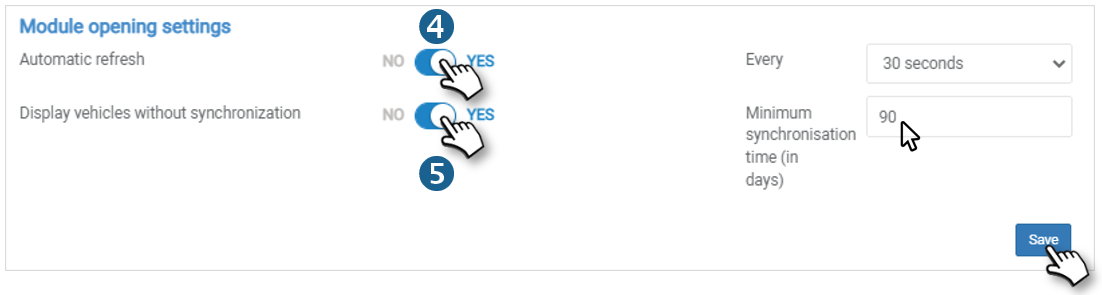
If not, you can do it manually on the map.

Display of the vehicles according to the last synchronisation of the box :

5. NO: all vehicles are displayed

    YES: Only those vehicles whose box timing matches the selected number of days will be displayed.Don’t forget to SAVE!

Cet article vous a-t-il été utile ?
Updated on 14 March 2022
User management
Table of Contents
  • Confidentiality of journeys
  • Display speeds
  • Private/Pro modification
  • Vehicle display settings

© 2026 SecuriTrack Helpcenter

Powered by WordPress

To the top ↑ Up ↑