
Fill in the vehicle files
Display the vehicle fleet
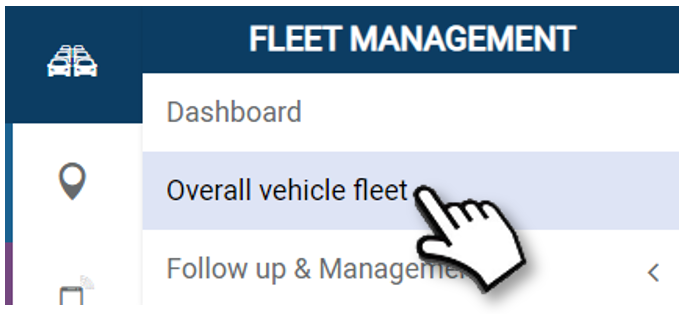
If the telematics boxes have been installed, the registrations may have been entered by the technician.
Otherwise the vehicles are identified by a number: 001, 002, 003…..
If so, you can see that a lot of information is available in this table. This information is entered on the individual vehicle sheet.
To enter this information, double-click on the line of the vehicle concerned. The vehicle master record opens:
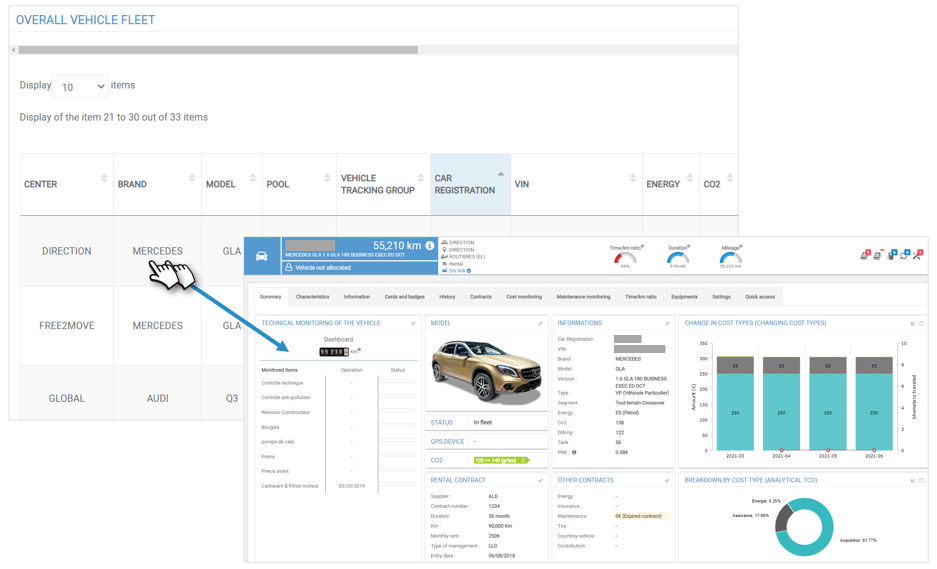
Fill in the characteristics of the vehicles
Click on the CHARACTERISTICS tab of the record:
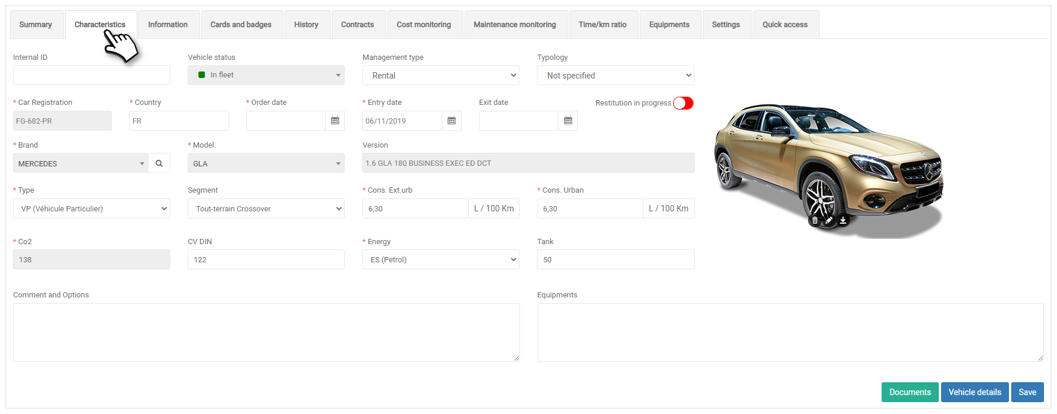
You can now fill in the fields in the vehicle file:
1. Internal ID: this field is not mandatory.
2. Status: different statuses are proposed corresponding to the life cycle of the vehicle in the fleet.
3. Type of management: rental or ownership
4. Country: important for registration, registration certificate and taxation.
5. Entry/exit dates: Entry and exit of the park are essential for efficient and accurate management.
6. Brand / model / version / type / segment / consumption / CO2 / energy / ..: Querying the SIV database (Service d’Immatriculation des Véhicules, France only) automatically fills in certain fields. Make sure you fill in the other missing fields (in particular the consumption and CO2 emissions for the ECO-CONDUITY)
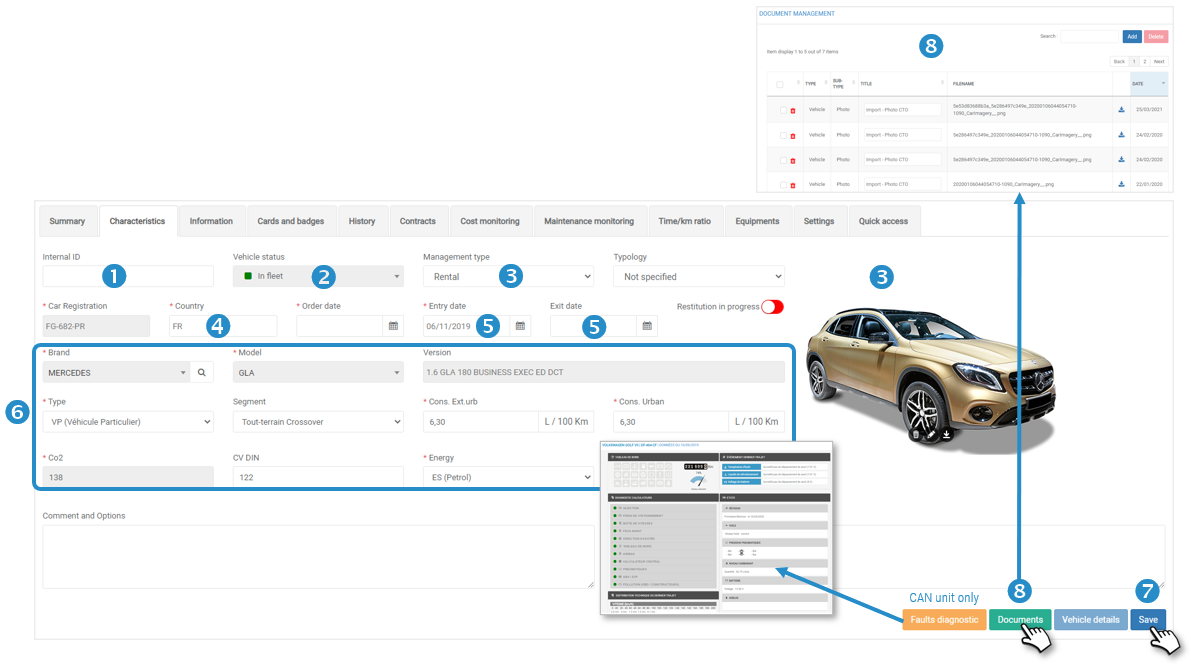
7. Do not forget to SAVE your entry.
8. DOCUMENTS button: the application offers you Electronic Document Management (EDM). You can download and manage all the documents you want (registration certificate, insurance, claims declarations…)
Record the maintenance of your vehicles
The application offers 24 types of maintenance that have been previously configured in the SETTINGS > FLEET MANAGEMENT > DEFINE MAINTENANCE TYPES menu.
If you have activated these maintenance types manually or if the SIV database query has generated the automatic activation of certain maintenance types, you will find them in the records of all vehicles.The activation of the maintenance types makes them appear in the vehicle files
Follow-up of maintenance
| TYPES OF MAINTENANCE | ACTIVATION | MONITORING / ALERT |
|---|---|---|
| Where ? | SETTINGS > Fleet Management > Maintenance definition | VEHICLE SHEET > Maintenance tab |
| Mode | AUTOMATIC if the vehicles have been converted to SIV and a manufacturer’s maintenance plan has been submitted (activation of the types of maintenance submitted, not systematically the 24) MANUAL for maintenance types not reported by the DB query | AUTOMATIC whether the maintenance types are returned automatically by the DB query MANUAL for maintenance types not automatically reported by the DB query |
1. AUTOMATIC: Alerts are set up automatically. You do not have to do anything except set the pre-alarm.
2. MANUAL: For each type of maintenance, you select the monitoring mode (km, time…), enter the date and/or the periodicity mileage of the operation. You also set the pre-alert time (in km or time) as well as the service provider concerned by this maintenance (in order to have easy access to his contact details).
3. The status and colour gauge are displayed according to the data entered.
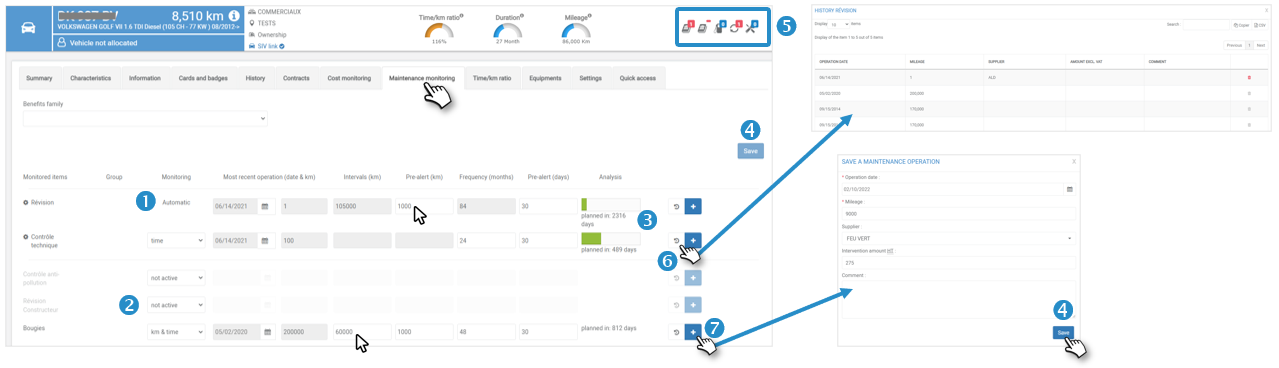
4. Do not forget to SAVE your entry
5. The alerts are displayed on the manager’s dashboard and on the vehicle file.
6. Click to access the maintenance history, if applicable.
7. Click to record a maintenance operation that has taken place (km meter, supplier, amount and date)